¶ Add Domain
A domain is a part of an organization or the entire organization being audited.
It can be:
- the entire organization (one domain for everything)
- a separate department (e.g., “IT department” or “Marketing”)
- a regional office or branch
You can create one shared domain for the entire organization if you don't need to separate audits by department. In the future, you can always add subdomains for individual departments or branches if necessary.
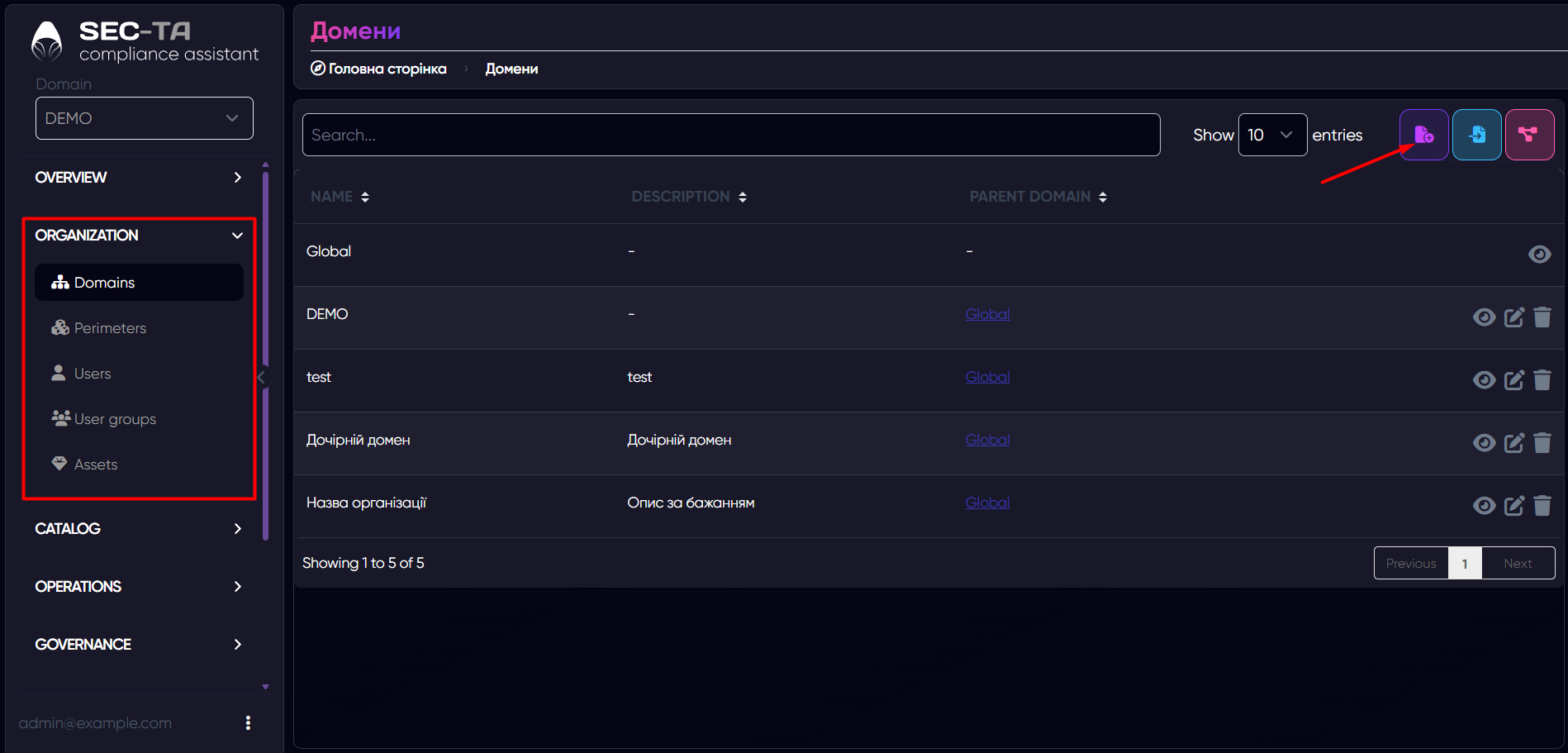
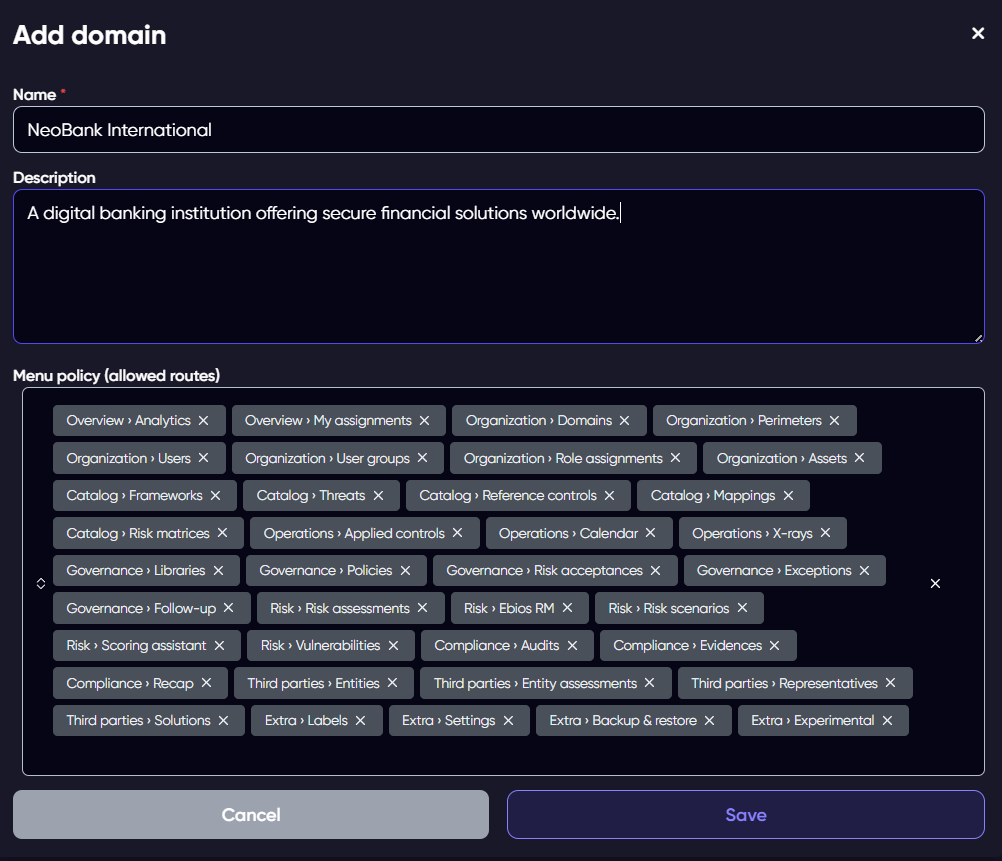
Next, a form appears where you should enter information about the domain.
Field descriptions:
Name: Enter the name of the organization or part of the organization for which the information security audit is being conducted.
Description: Optionally, you can add a short description of the organization or specify its purpose, scope, or audit details.
Menu policy (allowed routes): Here, you can choose which sidebar menu items will be visible for this domain. If you later need a removed item, you can easily add it back at any time.
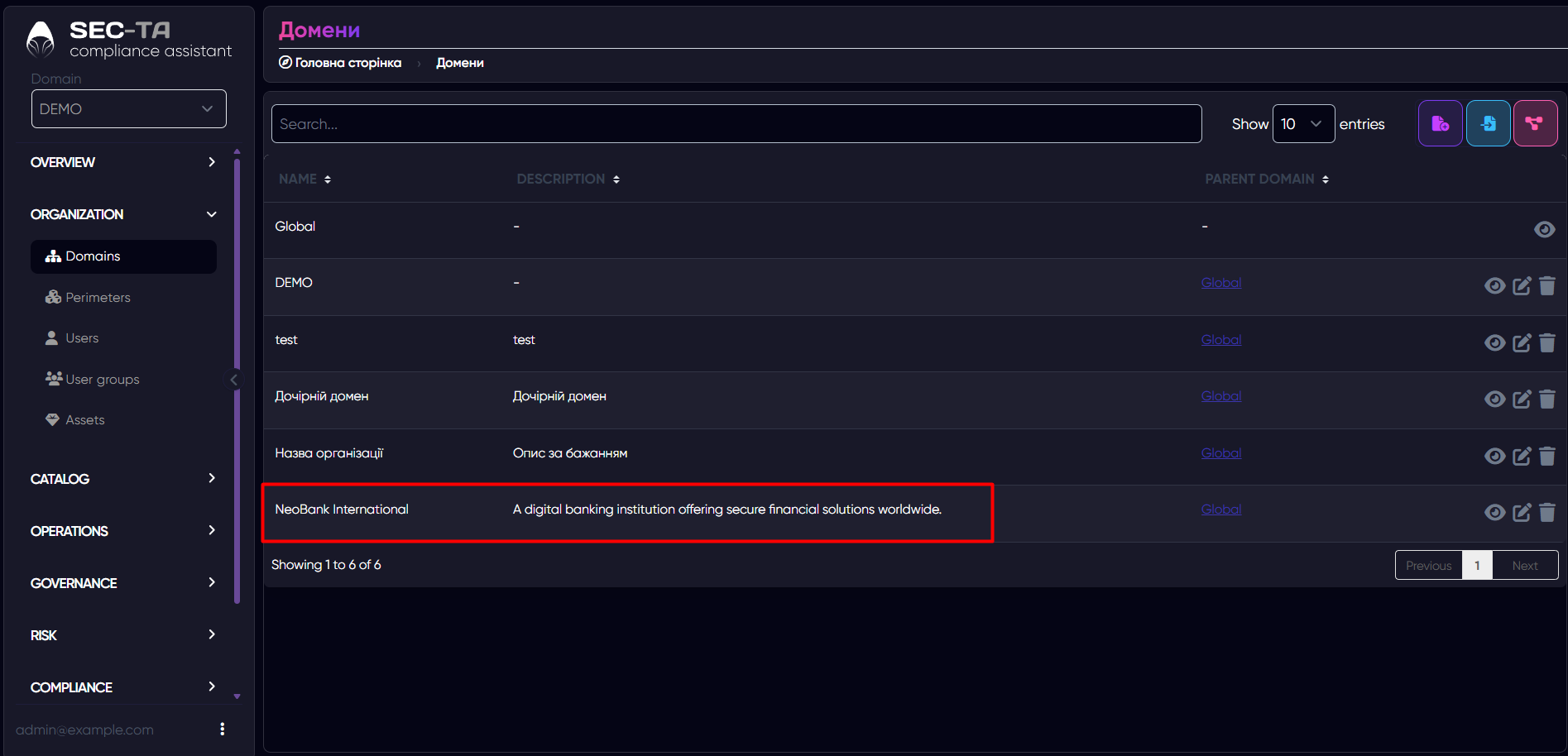
Click Save, and the domain will appear in the list.
¶ Import Domain
This is the second way to add a domain — by importing it from a file instead of creating it manually. You can use this option if you already have a domain configuration exported earlier or received from another system.
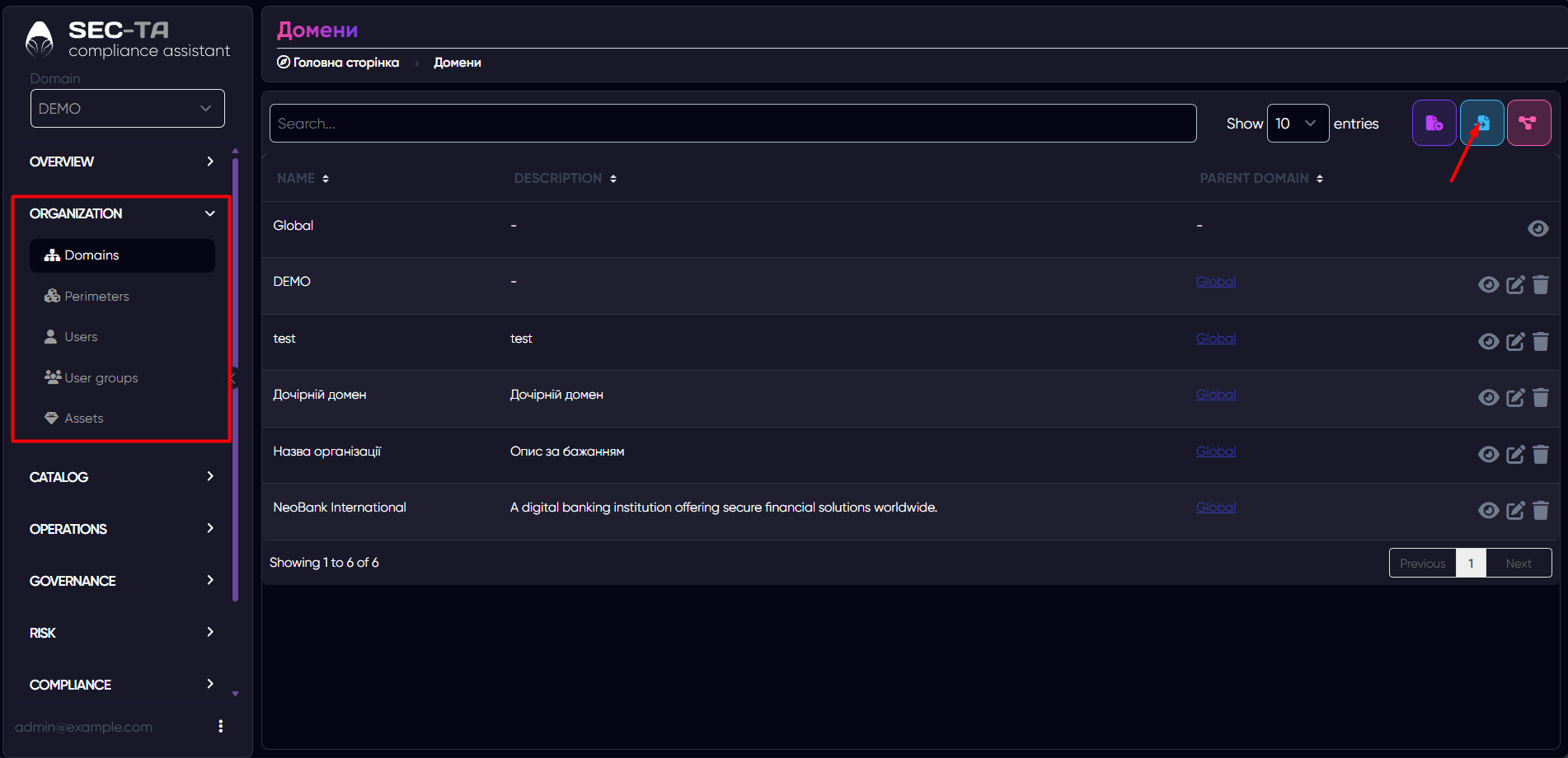
Next, a form appears asking you to enter the domain name and upload the file.
Field descriptions:
Name: Enter the name of the domain you want to import. If the file already contains the domain name, it will be updated automatically after import.
File: Select the file to import — supported formats are JSON or ZIP. This file should include all the necessary domain settings, controls, and configurations.
Load missing libraries: Enable this option if you want the system to automatically load any missing libraries or references required to complete the import. It’s helpful if the domain file references frameworks or catalogs not yet available in your environment.
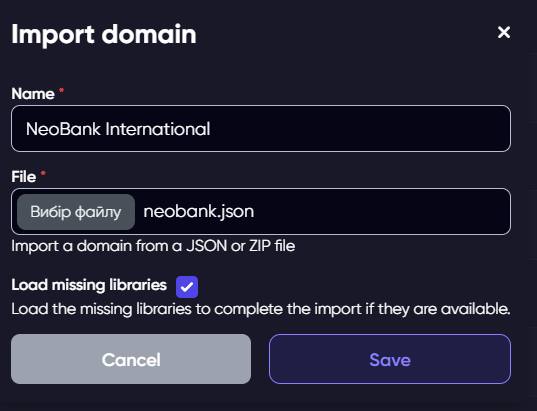
Click Save, and the domain will appear in the list.
¶ Edit Domain
You can modify an existing domain’s information without creating a new one. You can update the organization’s name, description. This option is useful when organizational structures change, or you need to correct details after the initial setup.
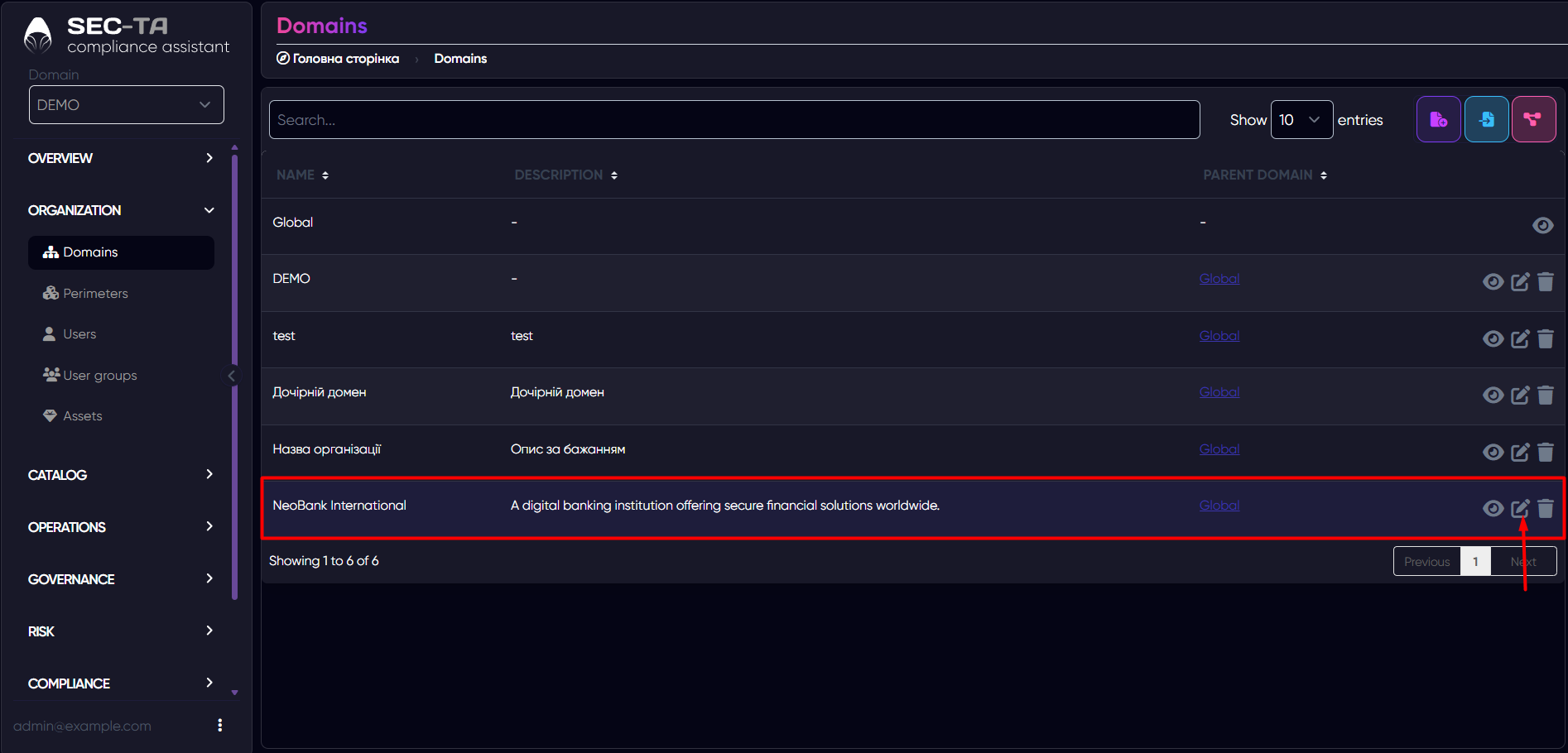
Next, a page opens with a form similar to the one used for adding a domain. Here, you can modify the name of the organization, update the description, and adjust the menu policy (allowed routes). This allows you to add or remove specific sidebar items depending on what should be visible or accessible for this domain.
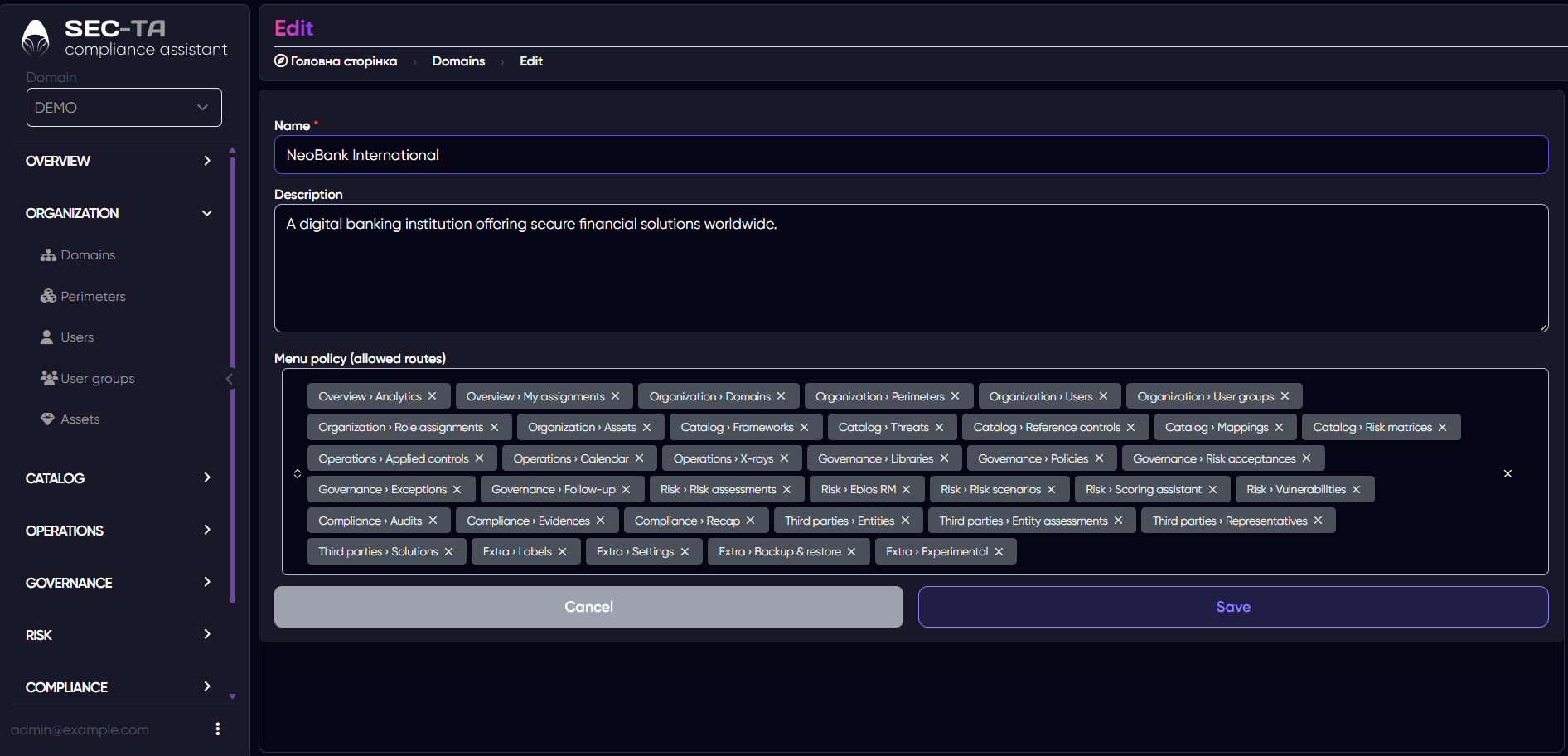
Click Save, and the edited domain will appear in the list of domains.
¶ Delete Domain
If a domain is no longer needed, you can delete it from the system. This action permanently removes the selected domain and all associated data, such as configurations, assigned users, and settings.
Use this option carefully — deletion should only be performed when the domain is no longer in use or has been replaced by another one.
Before deleting, make sure that no important audit or compliance data remains linked to the domain.
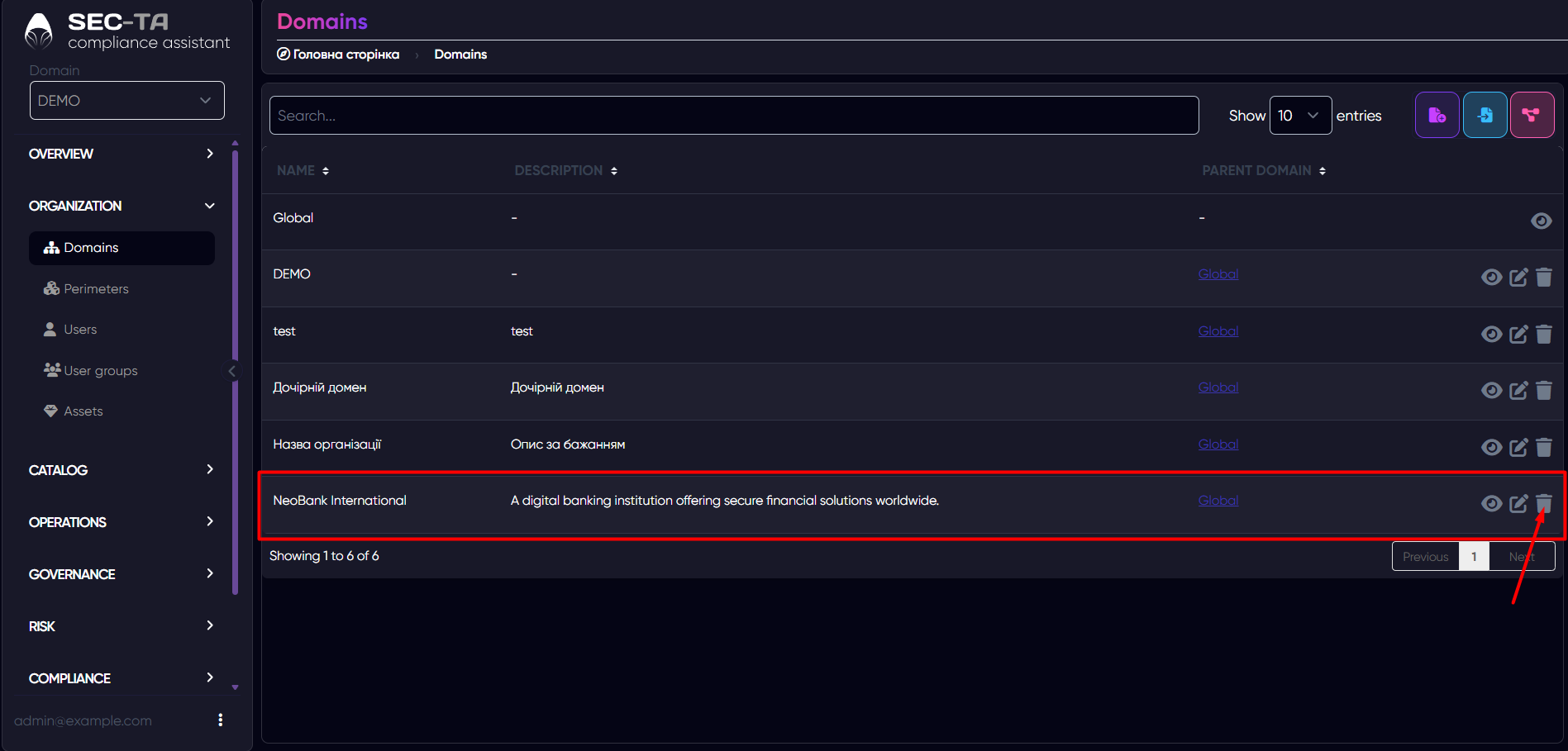
After that, a pop-up window appears to confirm the deletion of the domain.
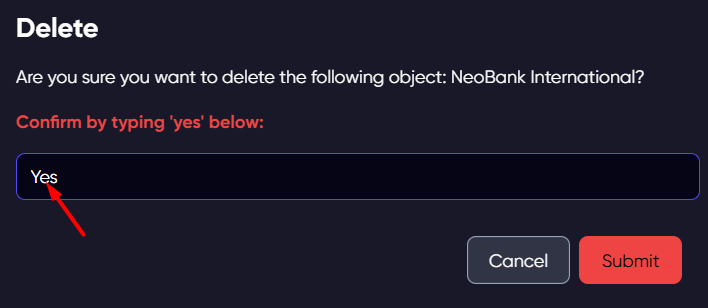
Click Save and the domain will be successfully deleted.
¶ Explore
The Explore (Inspect) section provides a visual overview of your organization’s domain structure.
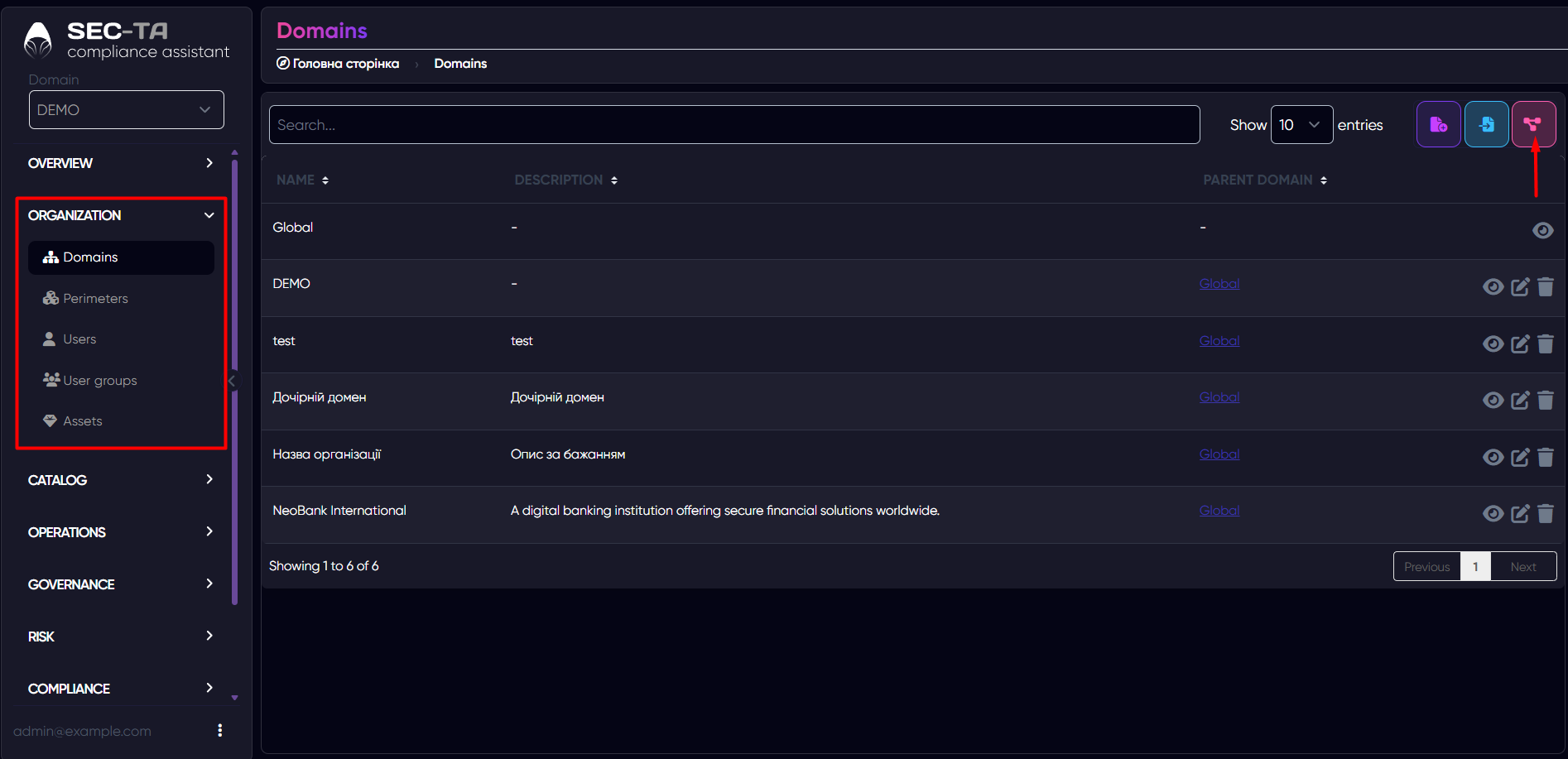
This diagram helps you clearly see how all domains are related and organized hierarchically.
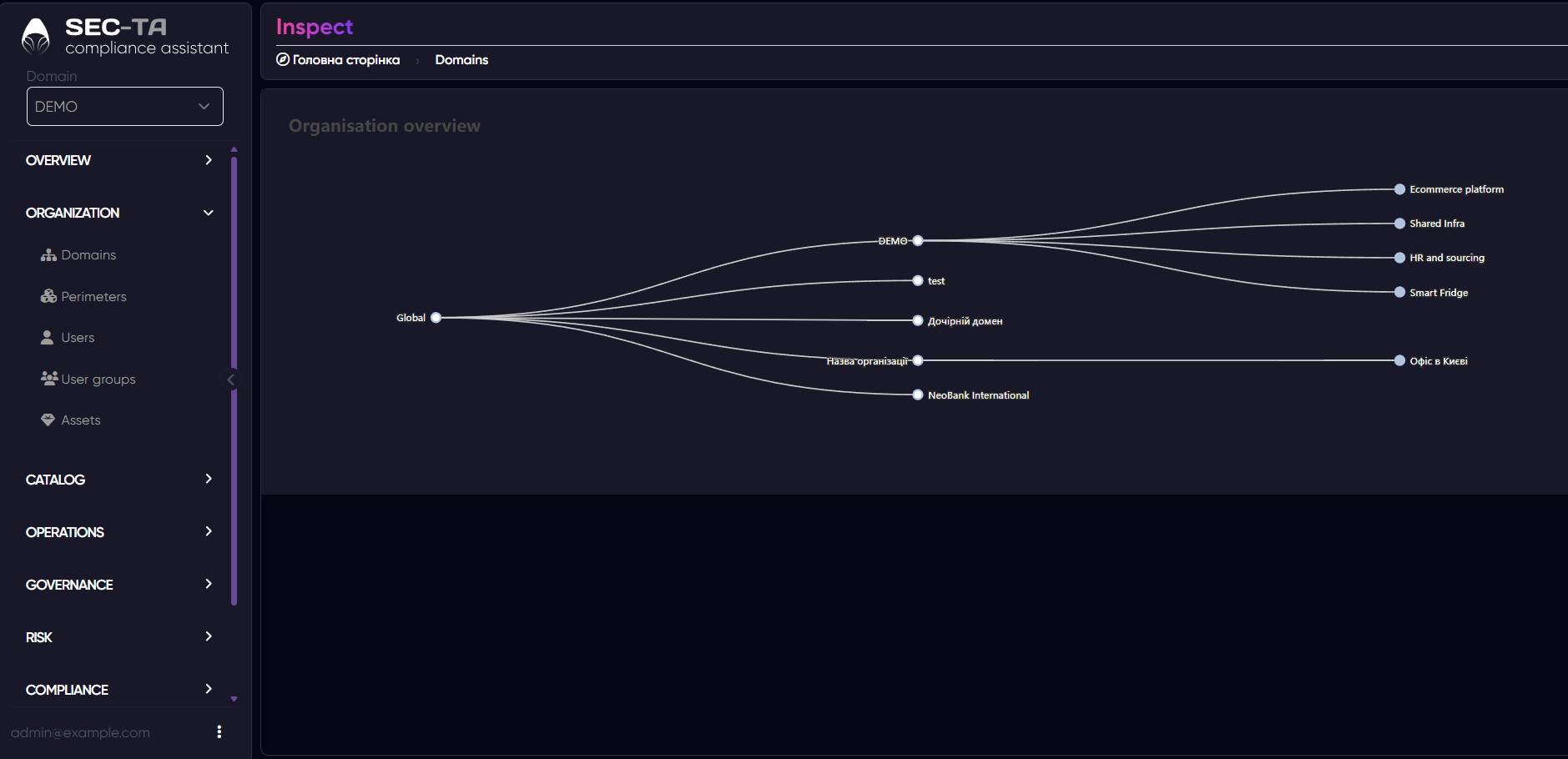
At the center of the diagram, you’ll find the Global domain, which represents the root or main organization. From it, branches extend to all other child domains — for example, regional offices, departments, or sub-organizations. Each of these nodes can have its own subdomains, representing smaller entities or projects.
You can use this view to:
- Quickly navigate between different domains by selecting a node.
- Understand dependencies and relationships between domains.
- Visualize the organizational structure and verify that all necessary parts of the company are represented.
This graphical map is especially useful for large organizations with multiple domains, allowing you to manage and audit them efficiently from a single view.