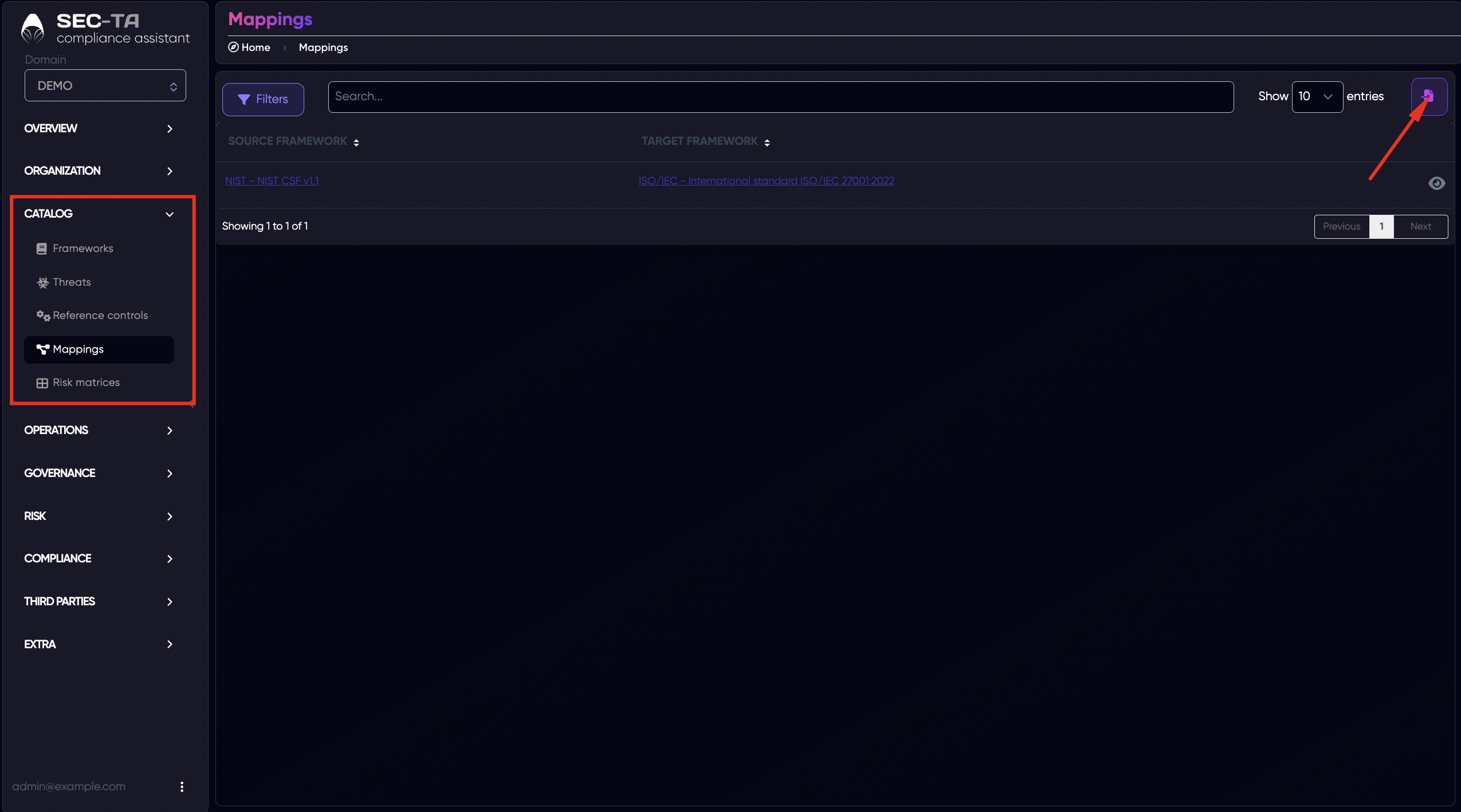
The Mappings page provides an overview of existing framework mappings, allowing you to define and manage relationships between a source framework and a target framework. It supports cross-framework alignment by enabling traceability between different standards.
¶ Add Mapping
Add a new mapping using the button in the upper-right corner.
Adding a mapping allows you to define a formal relationship between two frameworks:
- a source framework (where requirements originate), and
- a target framework (where those requirements are translated or aligned).
The page that opens is used to define and register a mapping library.
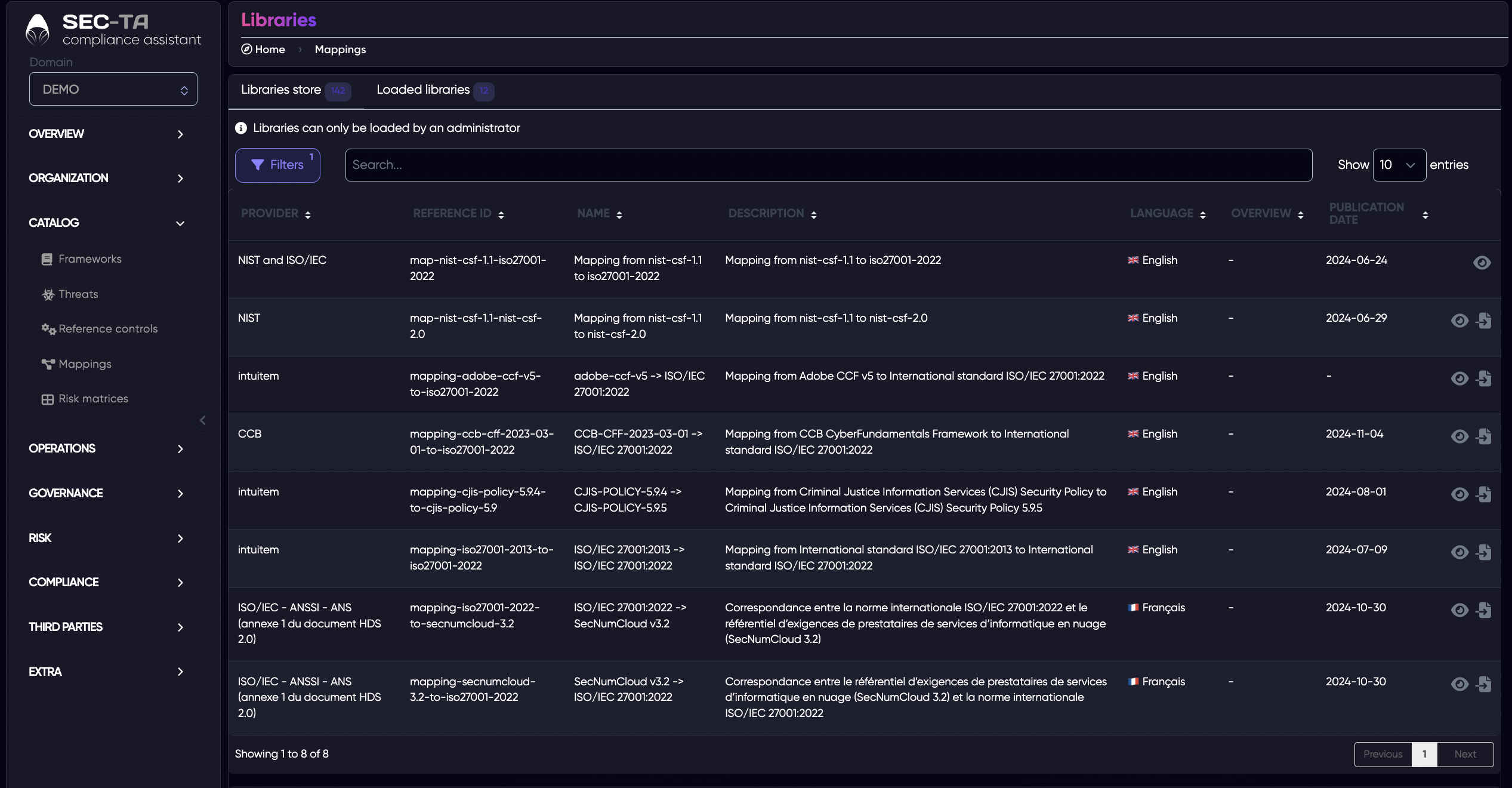
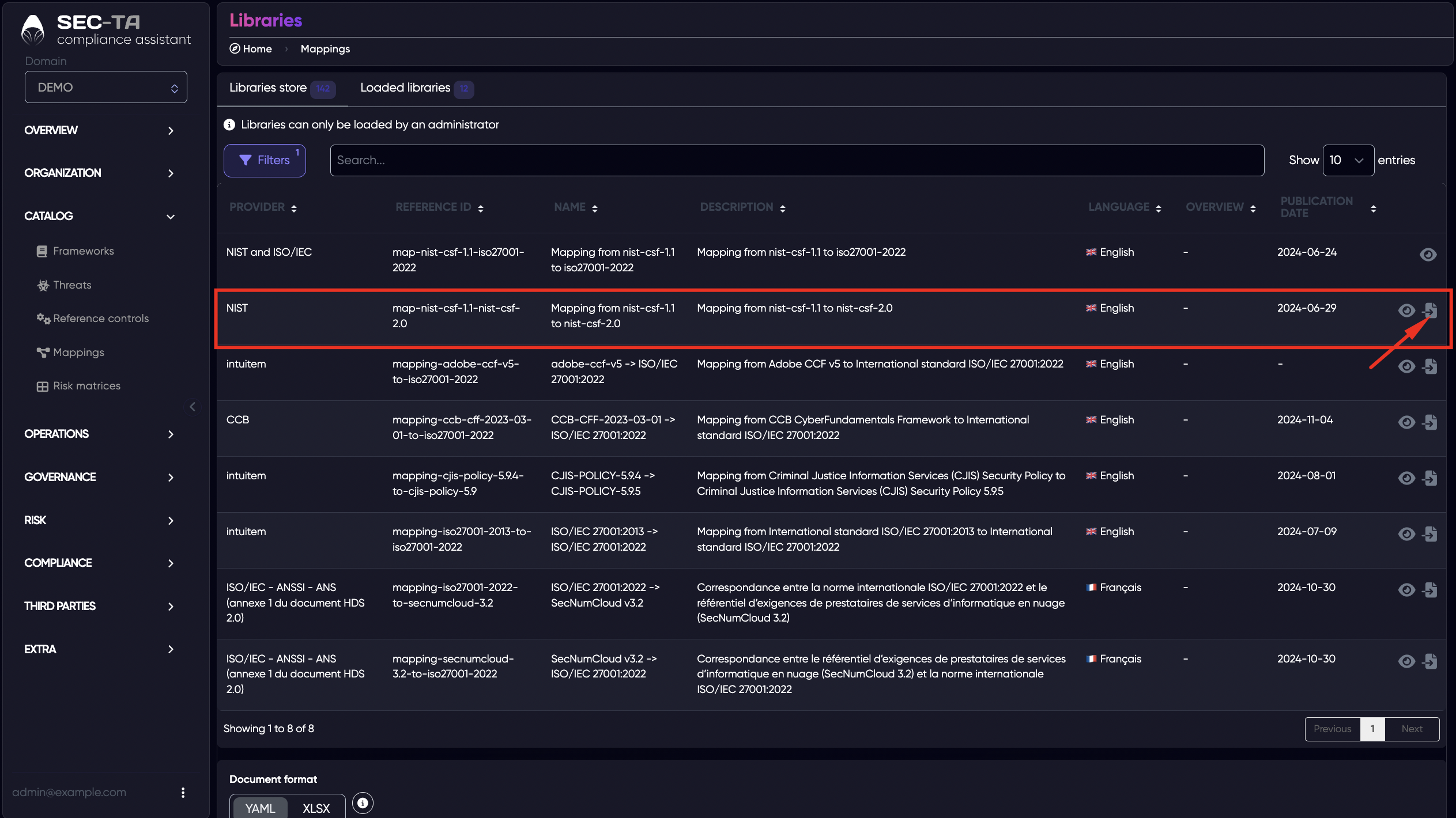
Select and add the desired mapping from the library.
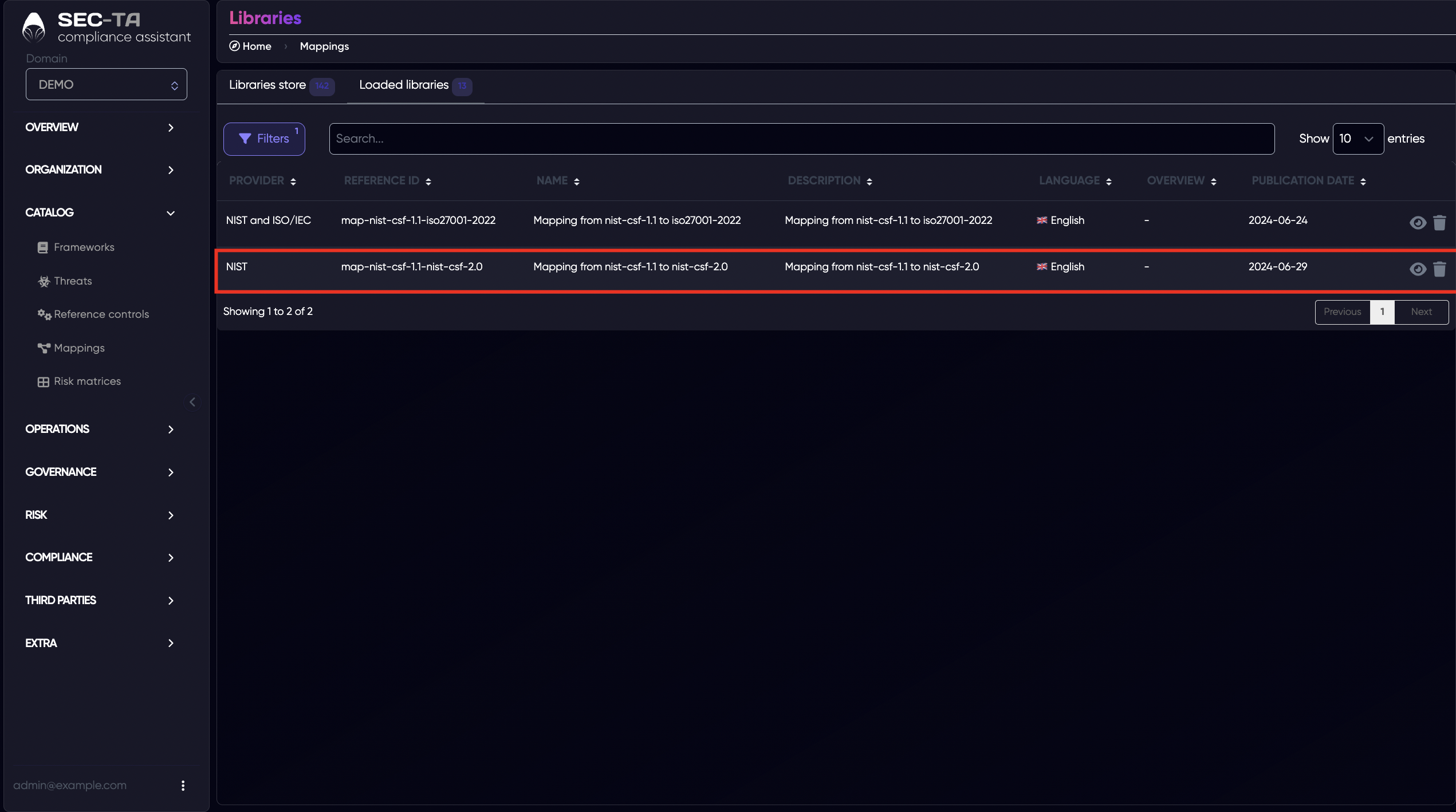
You can find added mapping in Loaded libraries.
¶ Import Mapping
The Import feature allows administrators to add a custom mapping library to the system by uploading a structured file.
Scroll Mapping library page to the Import section at the bottom of the page.
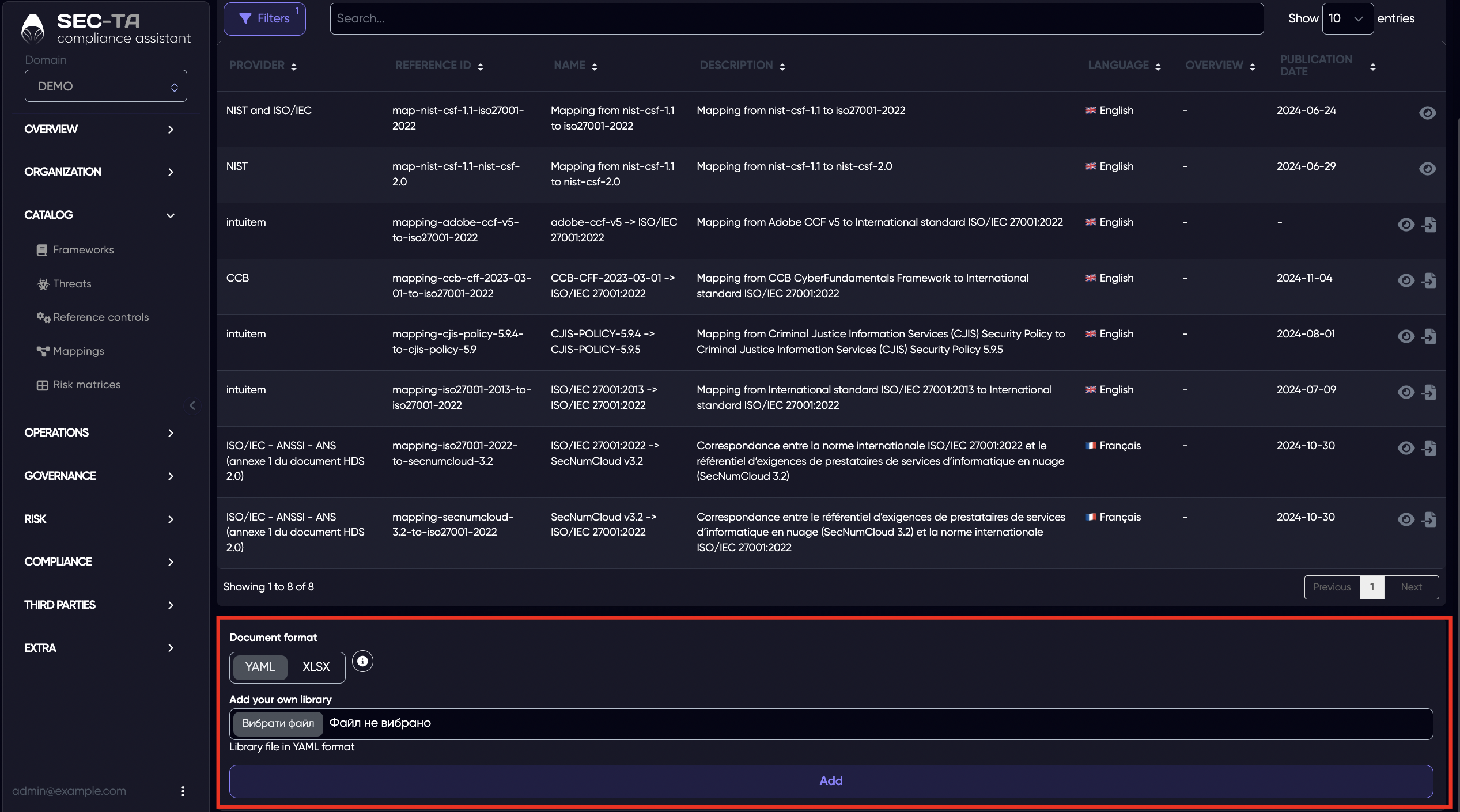
In the Document format section, choose YAML or XLSX. In the Add your own library section, click Choose file. Select the mapping file from your local system. Click Add.
If validation is successful, the mapping library is loaded. You can find imported mapping in Loaded libraries.
¶ Mapping Explorer
The Mapping Explorer provides a visual, interactive representation of relationships between two frameworks within a mapping library.
It helps users understand, analyze, and validate how controls from a source framework are connected to controls in a target framework. This view is especially useful for complex mappings where one-to-many or many-to-one relationships exist.
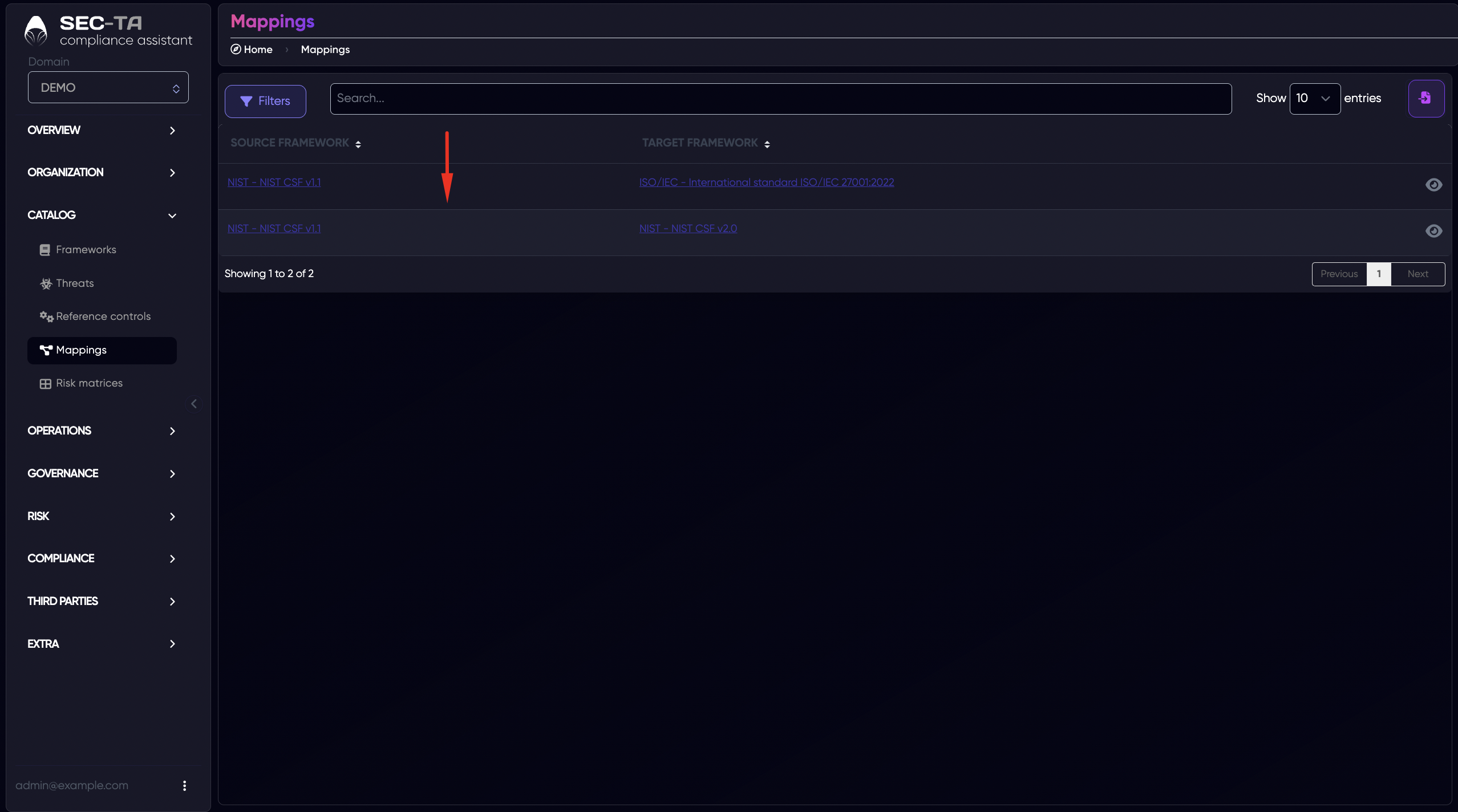
Choose and click on mapping that you want to explorer.
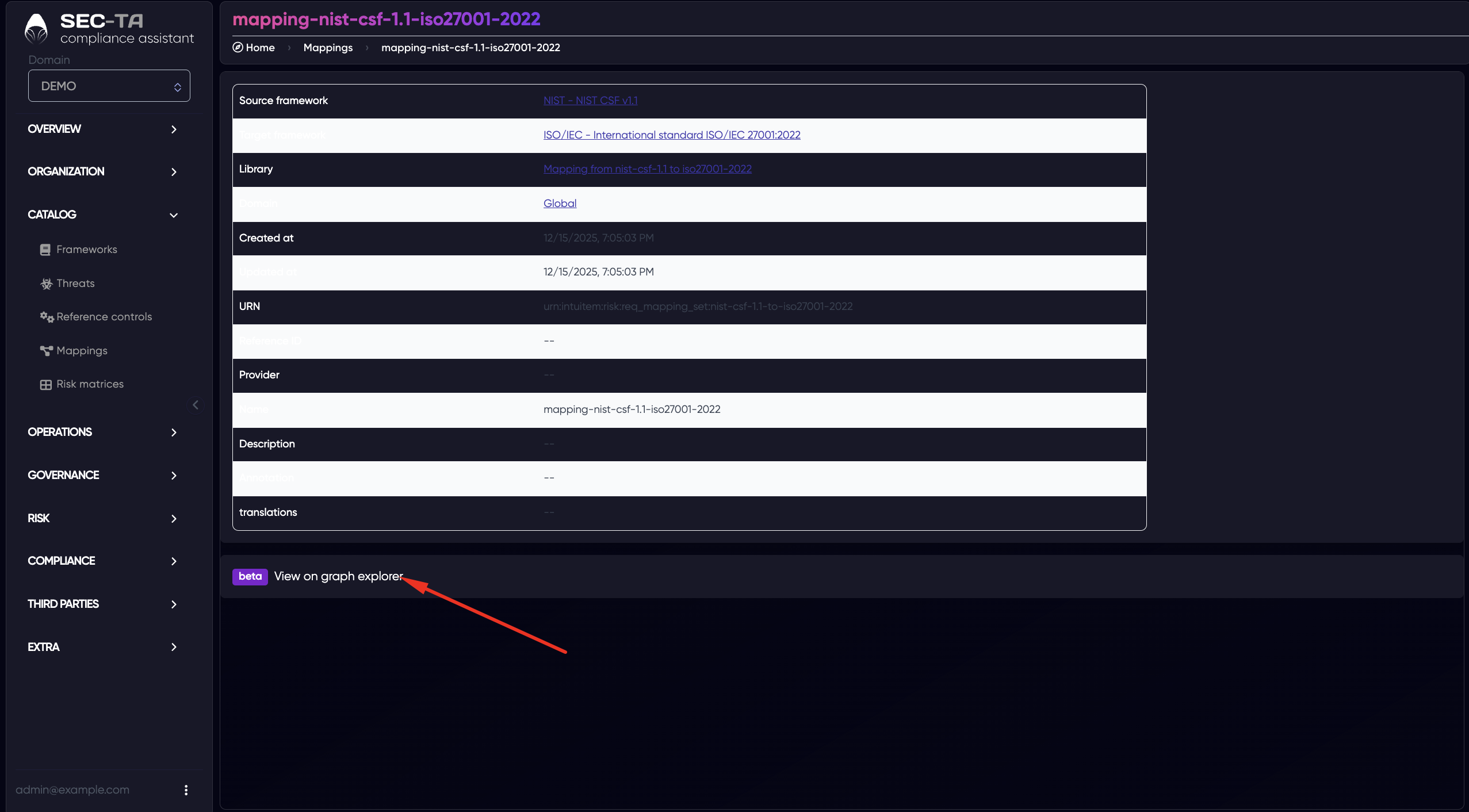
Then click on "View on graph explorer".
The Mapping Explorer opens as an interactive graph view.
Each node represents a control, category, or requirement from one of the mapped frameworks.
- Blue nodes - represent controls from the source framework (e.g. NIST CSF v1.1)
- Green nodes - represent controls or clauses from the target framework (e.g. ISO/IEC 27001:2022)
Lines between nodes represent mapping relationships. They show:
- which source control maps to which target control;
- one-to-one, one-to-many, or many-to-one relationships;
- directionality of the mapping (from source to target).
The search field allow you quickly locate a specific control ID or name.
The Mapping Explorer is a read-only visualization tool. It does not modify mappings. Changes to mappings must be done via:
- importing updated mapping libraries;
- replacing existing mappings.
¶ Delete Mapping
The Delete function allows an administrator to remove a loaded mapping library from the system when it is no longer needed, outdated, or was loaded in error.
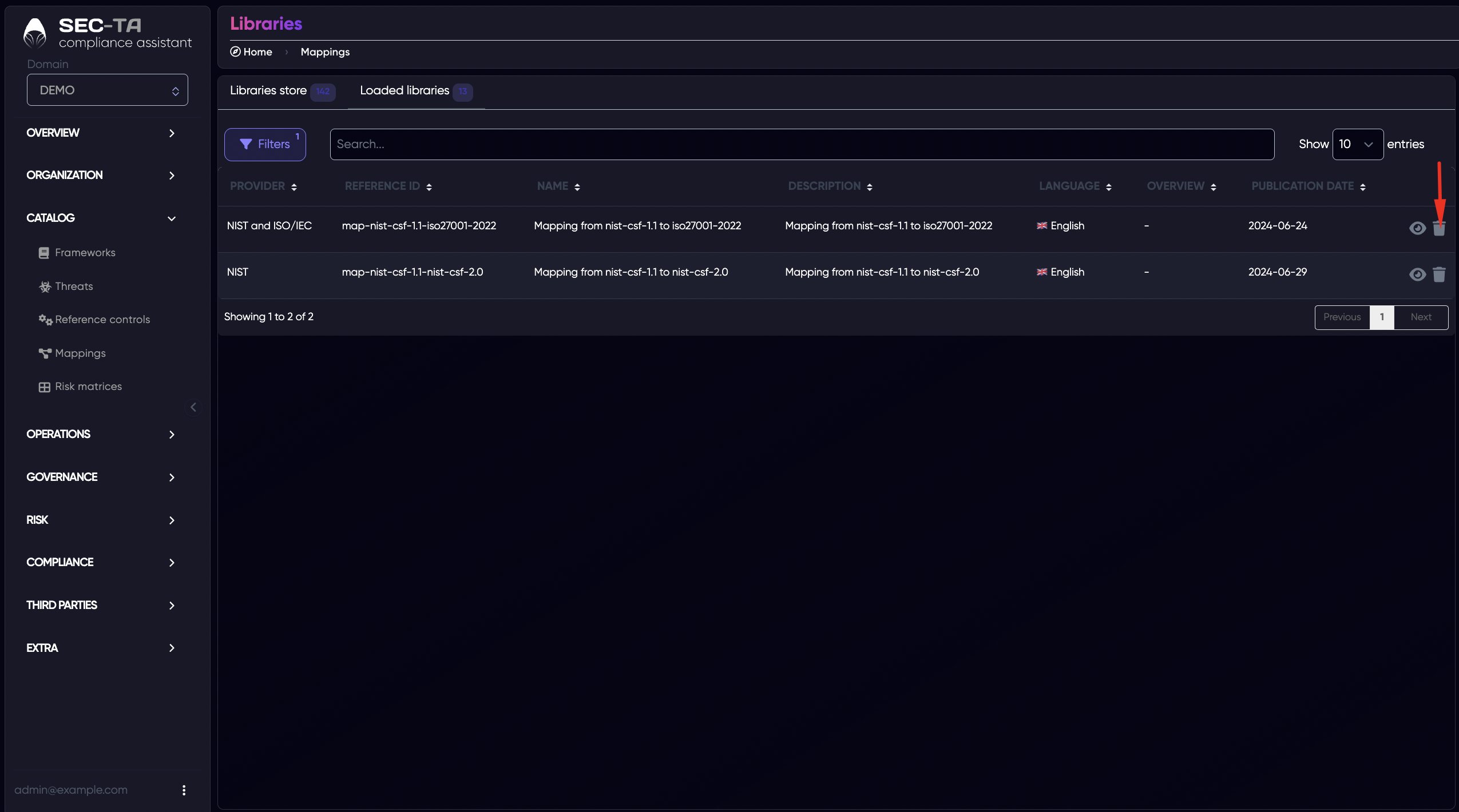
Go to Loaded libraries tab. Find the mapping library you want to remove. Each loaded mapping library has action icons on the right side of the row. Click the Delete (trash bin) icon.
After that pop-up window appears. Its purpose is to:
- confirm the user’s intent;
- clearly communicate the potential impact of the deletion;
- prevent accidental removal of mappings that are in use.
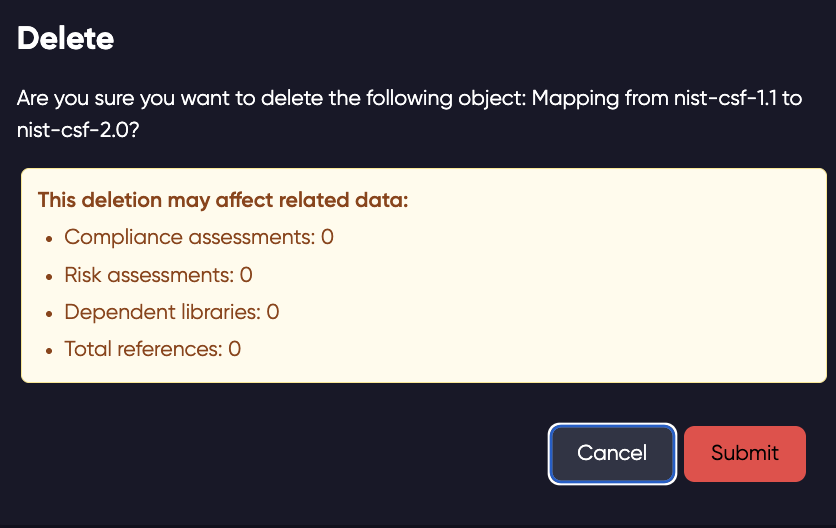
Click Submit button to confirm and delete the mapping.