¶ Add Threat
To add a new threat click the icon in the top-right corner of the page.
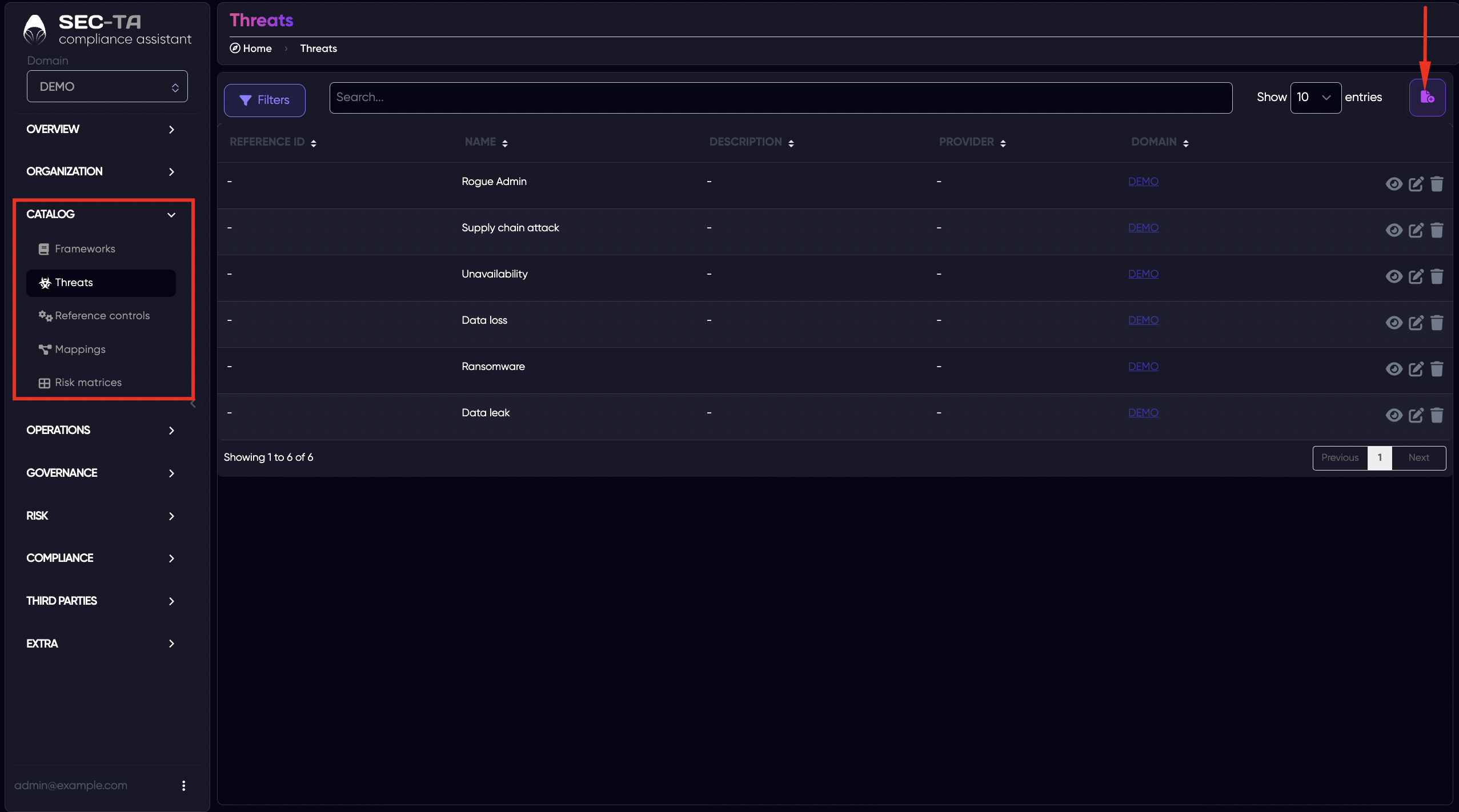
This will open a popup window with a form.
Field descriptions:
Name(required field) - enter the name of the threat.
Description - add additional details if needed.
Domain (required field) - select the domain this threat belongs to.
Reference ID - add an internal identifier.
Annotation - include any notes or additional context.
Provider - specify the source of the threat.
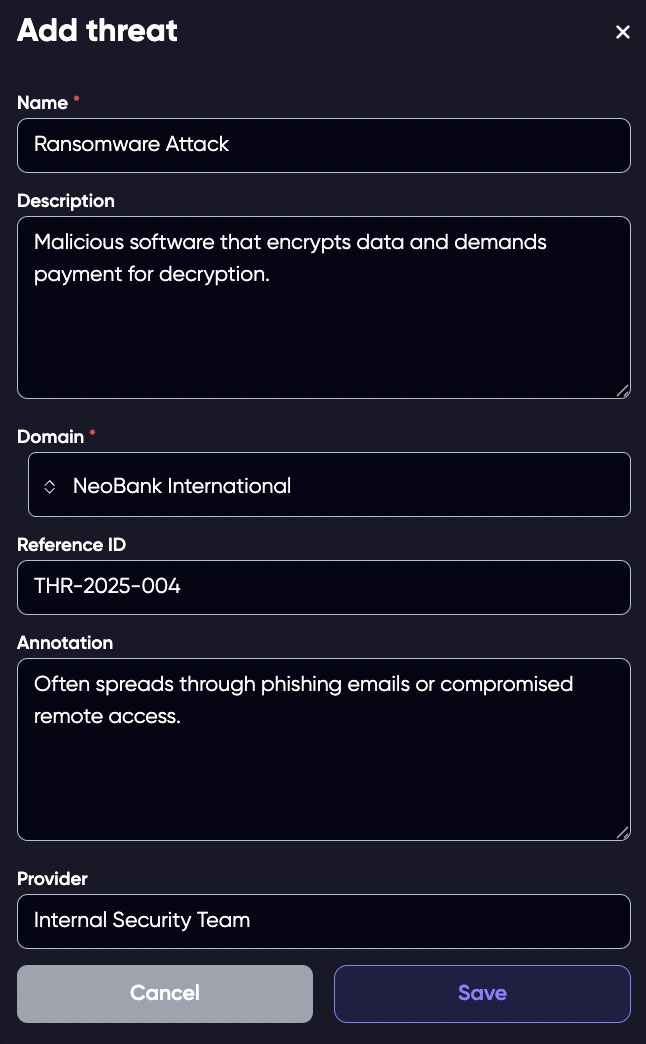
Click Save to add the threat, or Cancel to close the form without saving.
¶ Edit Threat
To edit an existing threat, start by clicking the edit icon (the pencil symbol) next to the threat you want to modify.
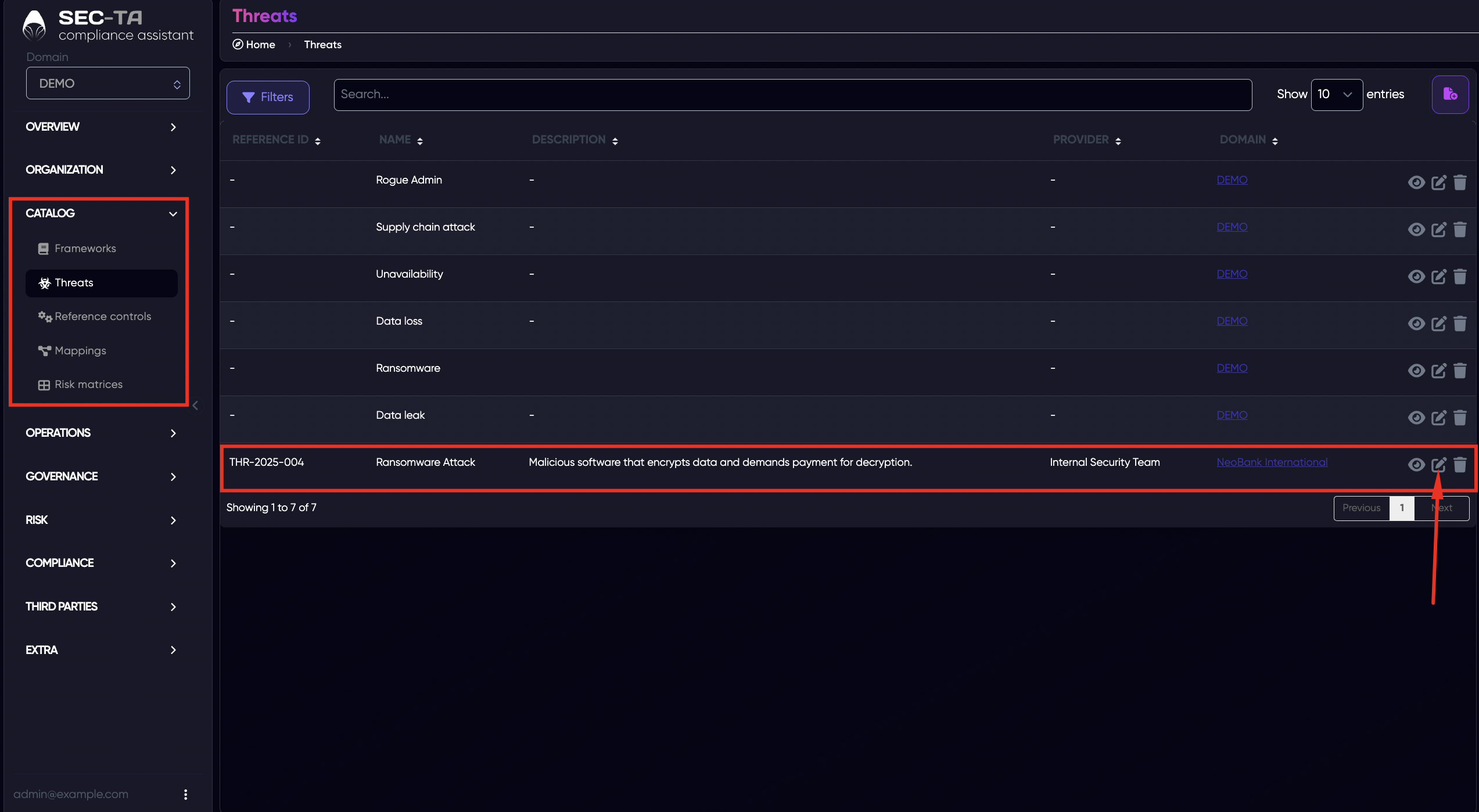
Once you click it, a popup window with the threat form will appear, allowing you to update any field, including the name, description, domain, reference ID, annotation, or provider.
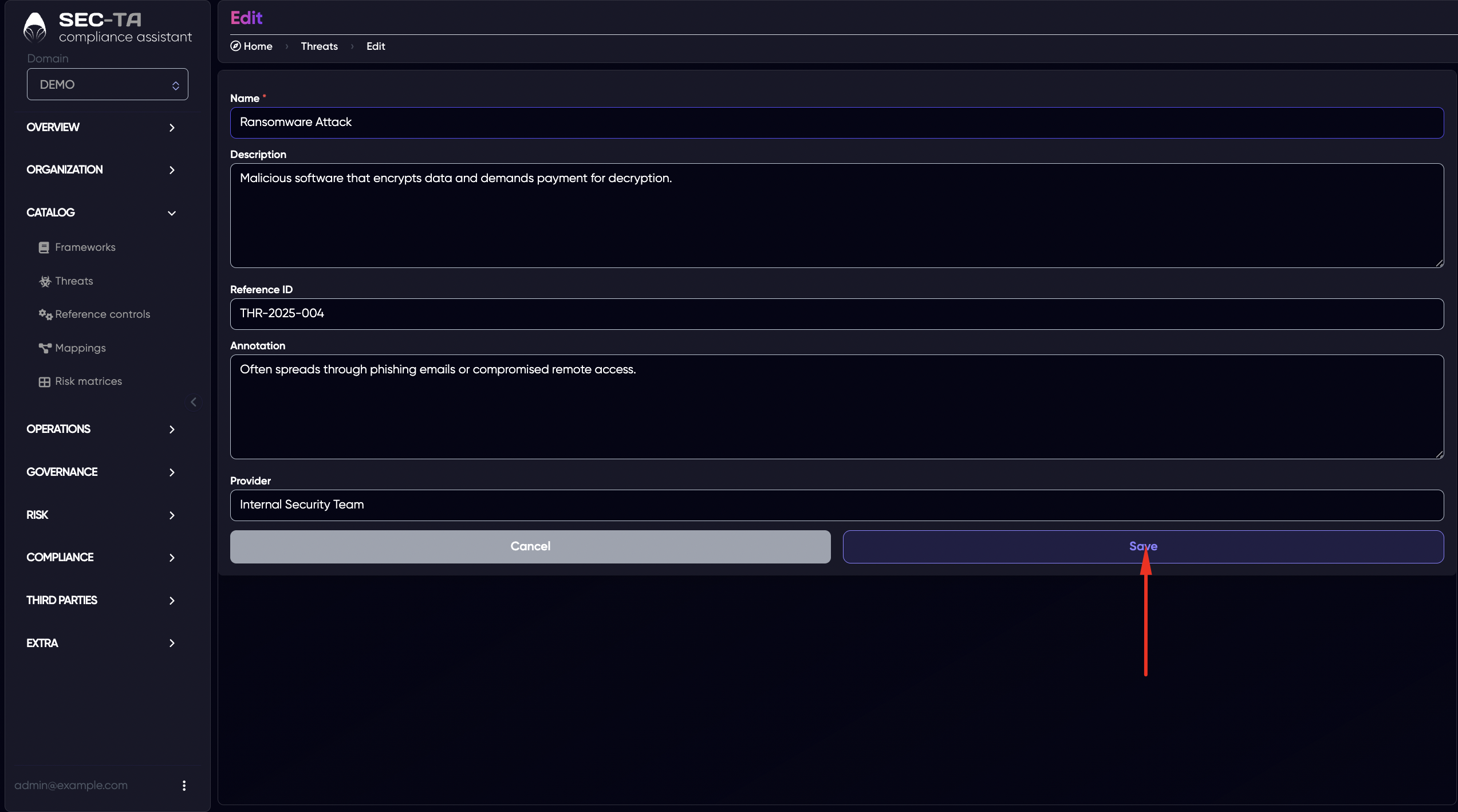
After making your changes, simply click Save to apply the updates.
¶ Delete Threat
To delete a threat, click the trash bin icon next to the threat you want to remove.
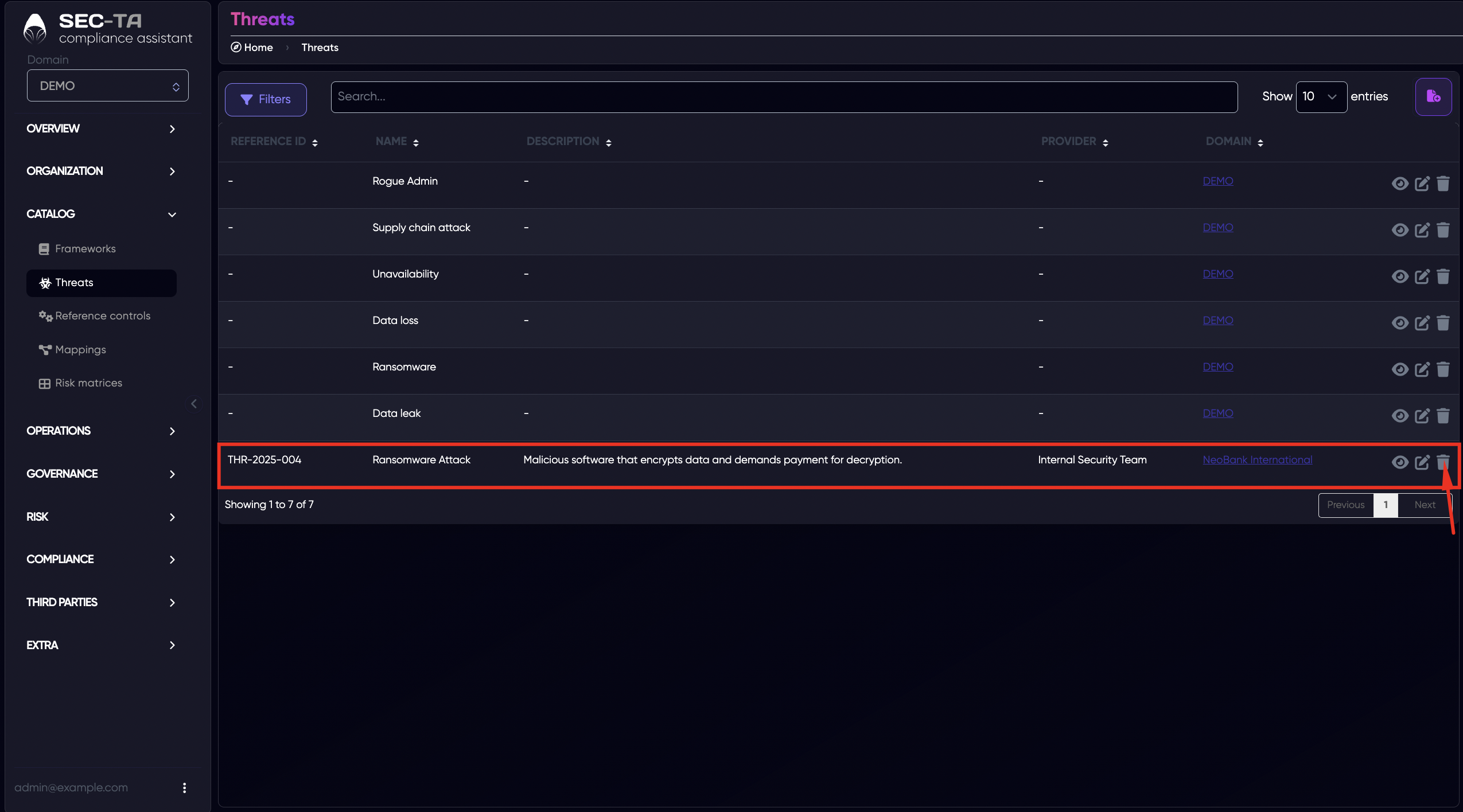
A confirmation popup will appear, asking if you are sure you want to delete this threat.
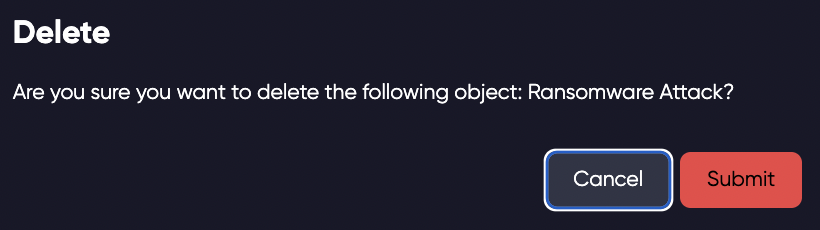
If you confirm, the threat will be permanently removed from the list. If you change your mind, simply click Cancel to close the popup without deleting anything.