¶ Add User
Users are individuals who have access to the platform and perform actions such as managing audits, controls, risks, and compliance processes. Each user has a unique email address and may have specific permissions or roles that define what they can view or edit.
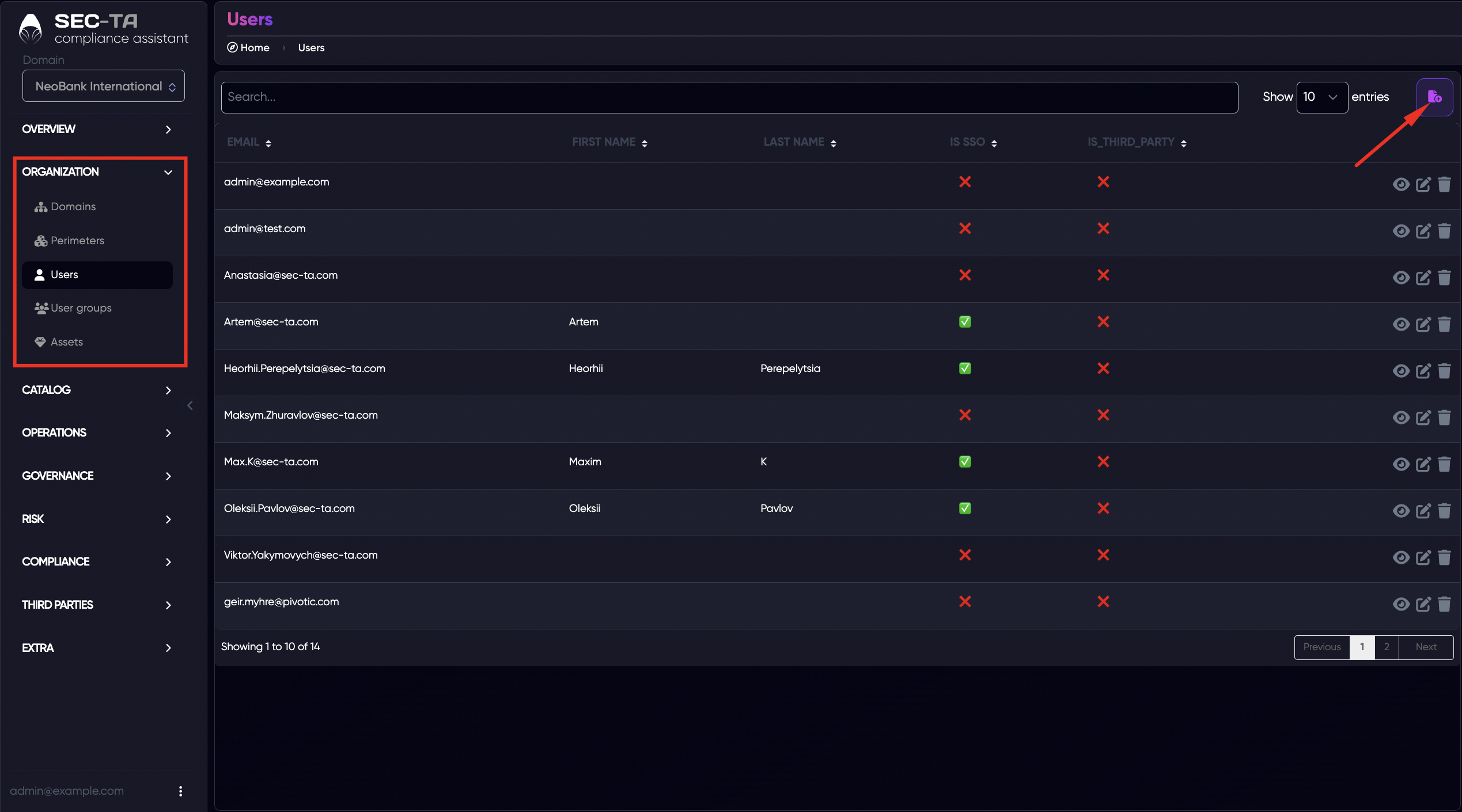
Add a new user using the button in the upper-right corner.
After that, a pop-up window will appear in which you need to enter the new user's email address.
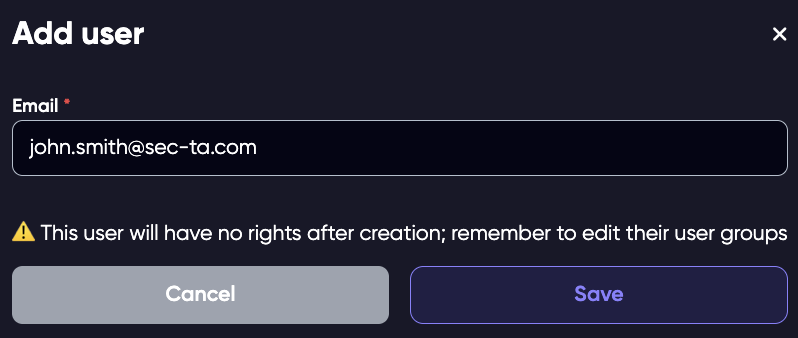
Click Save and the new user will appear in the list.
¶ Edit User
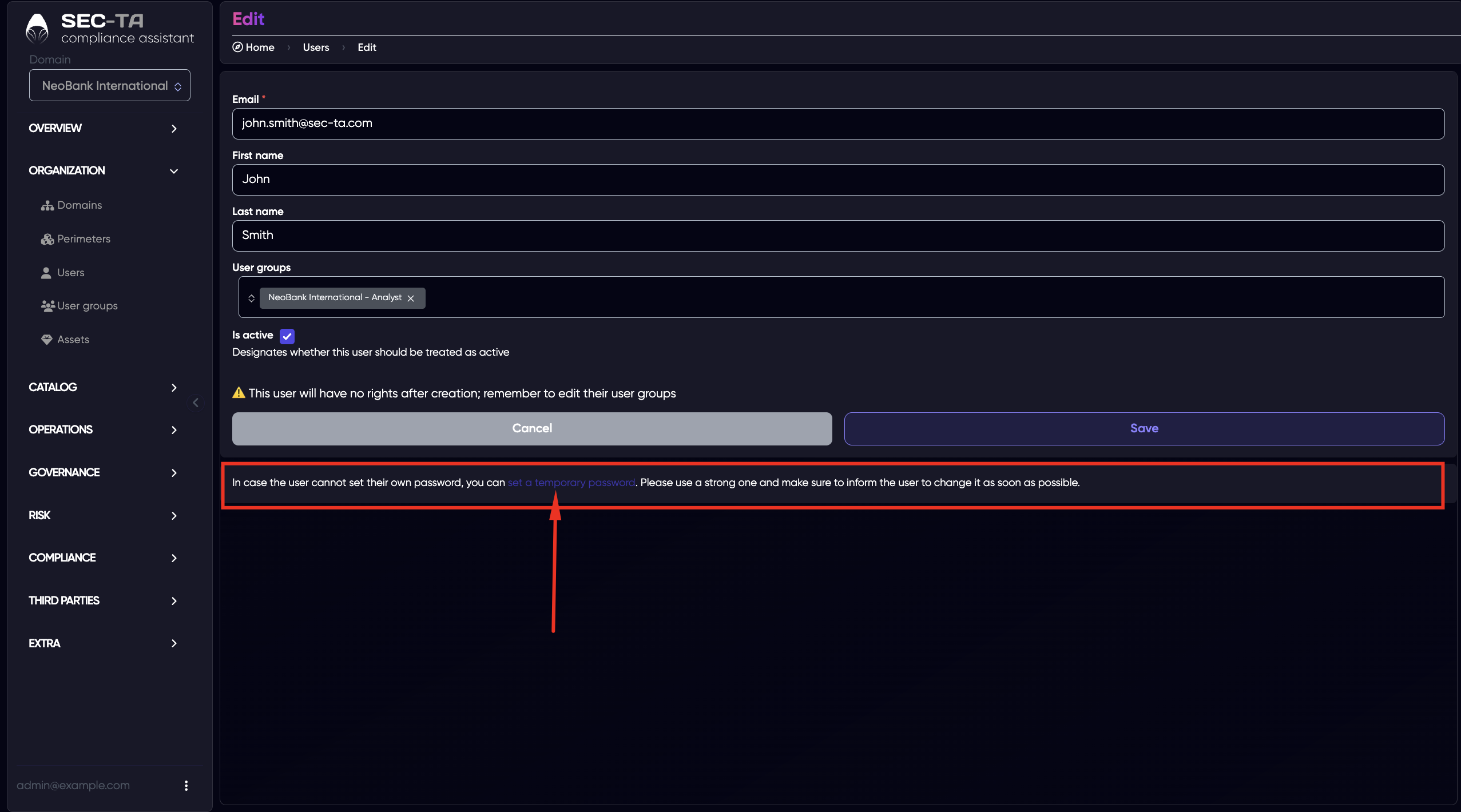
After creation, the user will not have any access rights by default. Click Edit to assign the appropriate access groups.
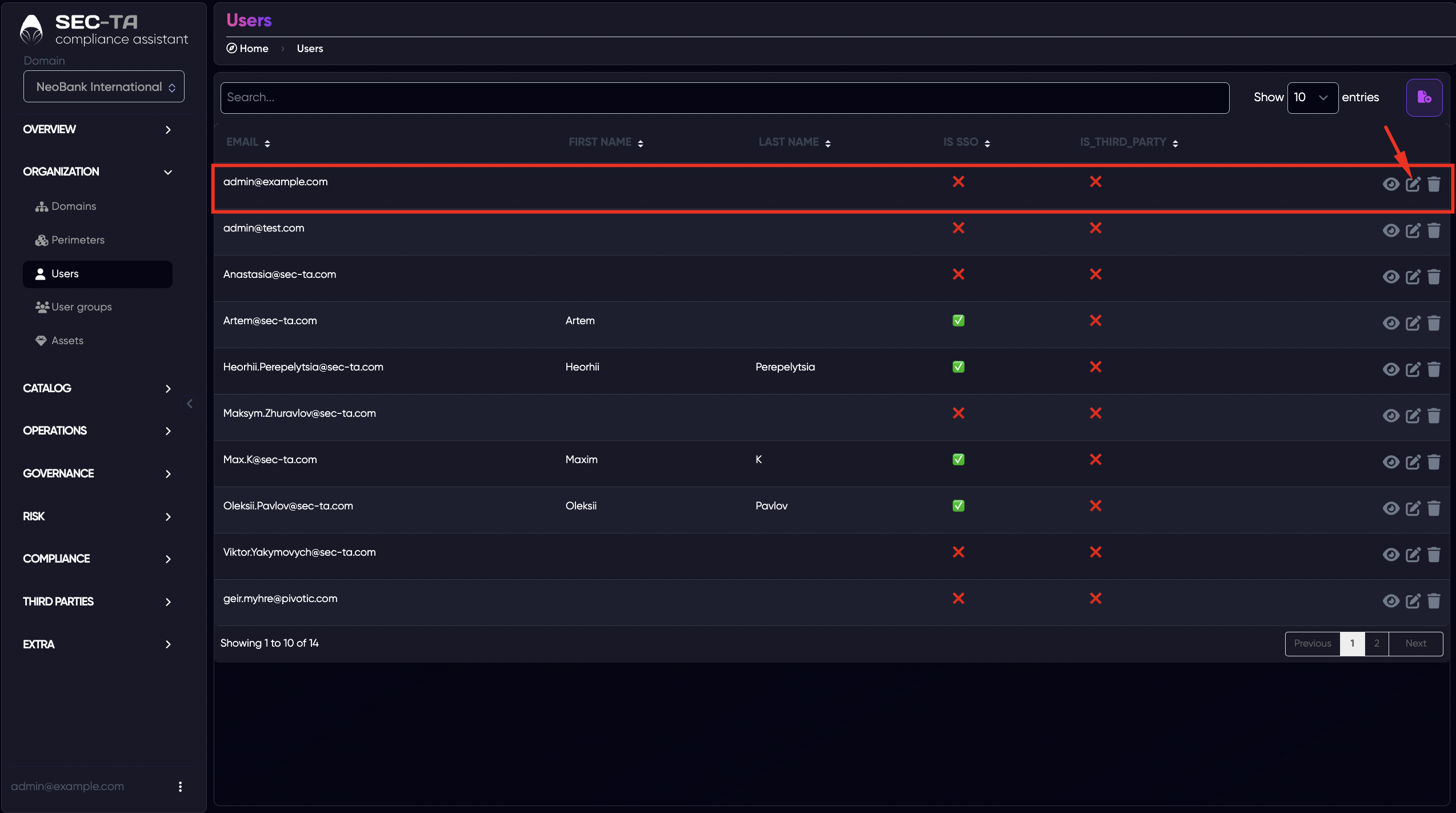
After that, the editing page will appear.
Field descriptions:
Email (required field) – the unique email address of the user. It is used for login and system notifications.
First name – the user’s given name, displayed across the platform and reports.
Last name – the user’s surname, used together with the first name to identify the account.
User groups – defines which roles or permissions are assigned to the user (Administrator, Domain manager, Analyst, Reader, Approver). User groups control what actions the user can perform in the system.
Is active – indicates whether the user account is enabled and allowed to access the system.
Checked – active and can log in.
Unchecked – inactive, the user cannot access the platform.
The system provides 5 built-in roles with different access levels:
- Administrator - full access (except for risk approval). Can manage domains, users, and their rights.
- Domain manager - full access to selected domains (except for risk approval). Can change user rights within these domains. Has read access to global objects (appears only after creating an organization/domain).
- Analyst - read and write access within specified perimeters or domains. Has read access to global and domain objects.
- Reader- read-only access within specified perimeters or domains.
- Approver - same as Reader, but can also approve risk acceptance.
For each domain/organization created, the system automatically forms separate groups with corresponding rights. For example, if the domain/organization U&A is created, the following groups will be created:
- U&A – Domain Manager
- U&A – Analyst
- U&A – Approver
- U&A – Reader
They provide access only to objects within the U&A domain according to their role.
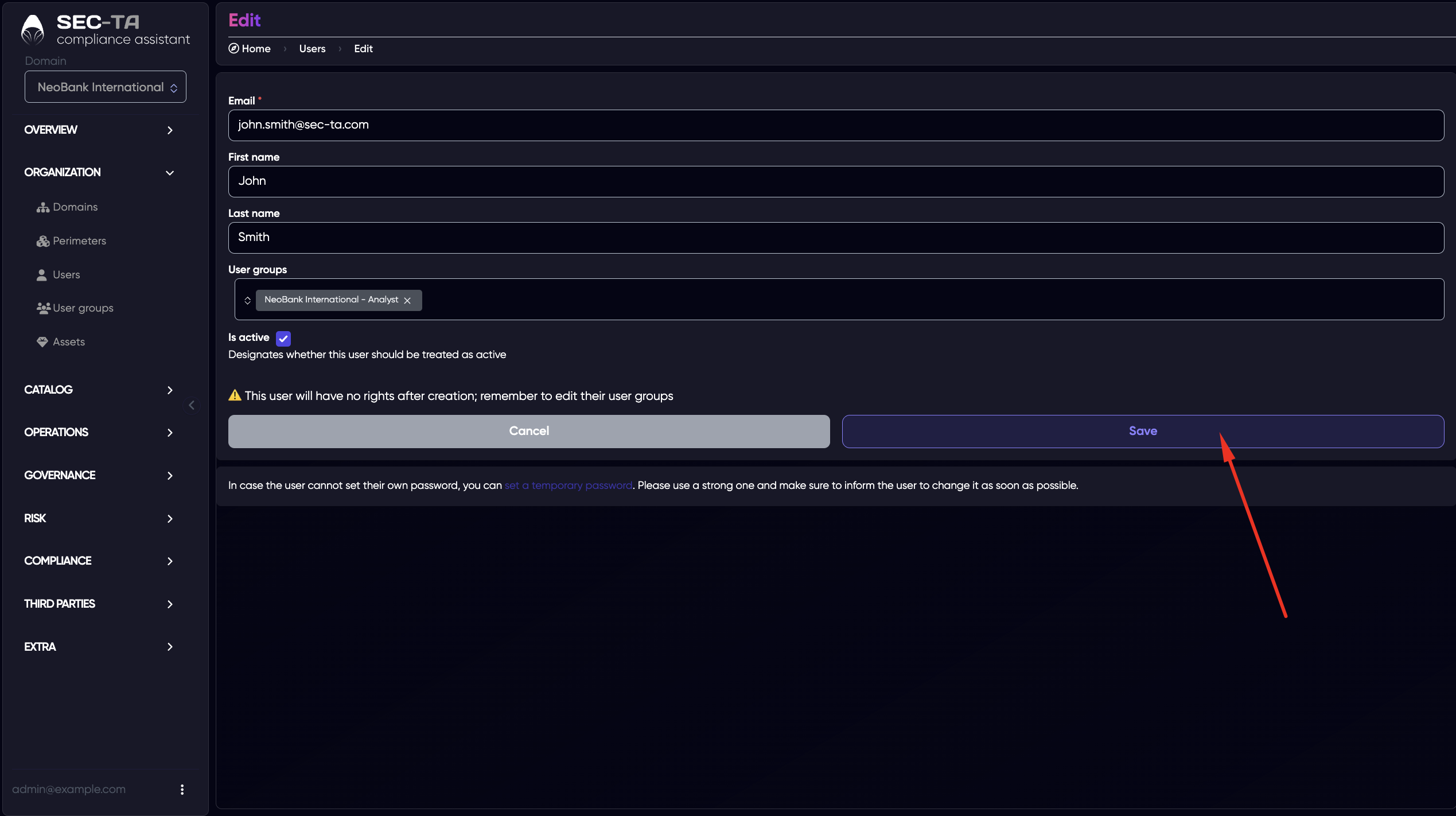
Click Save to confirm your changes.
After adding, set a temporary password by following the link below.
Next, a page with a form for setting a new password will appear. You need to enter the new password in the first field and re-enter it in the second field.
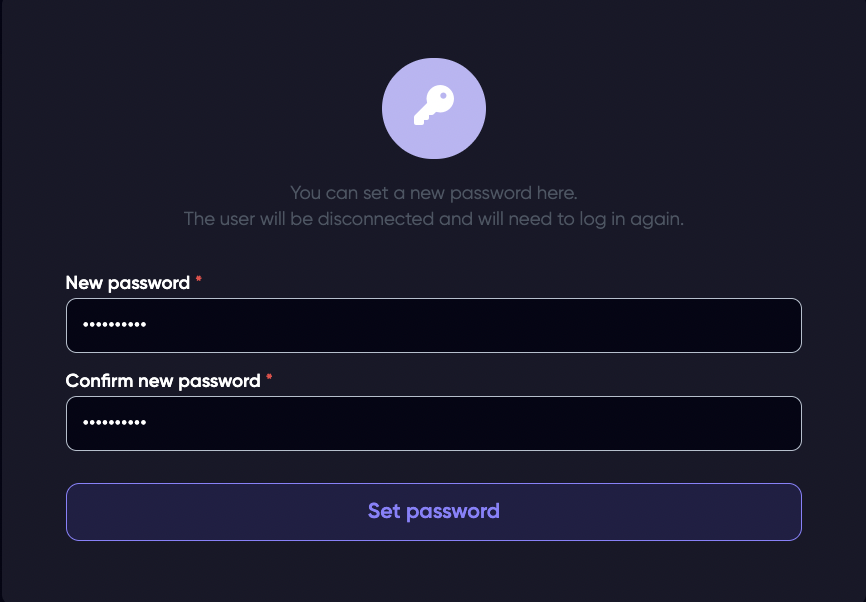
To save, click Set password.
¶ Delete User
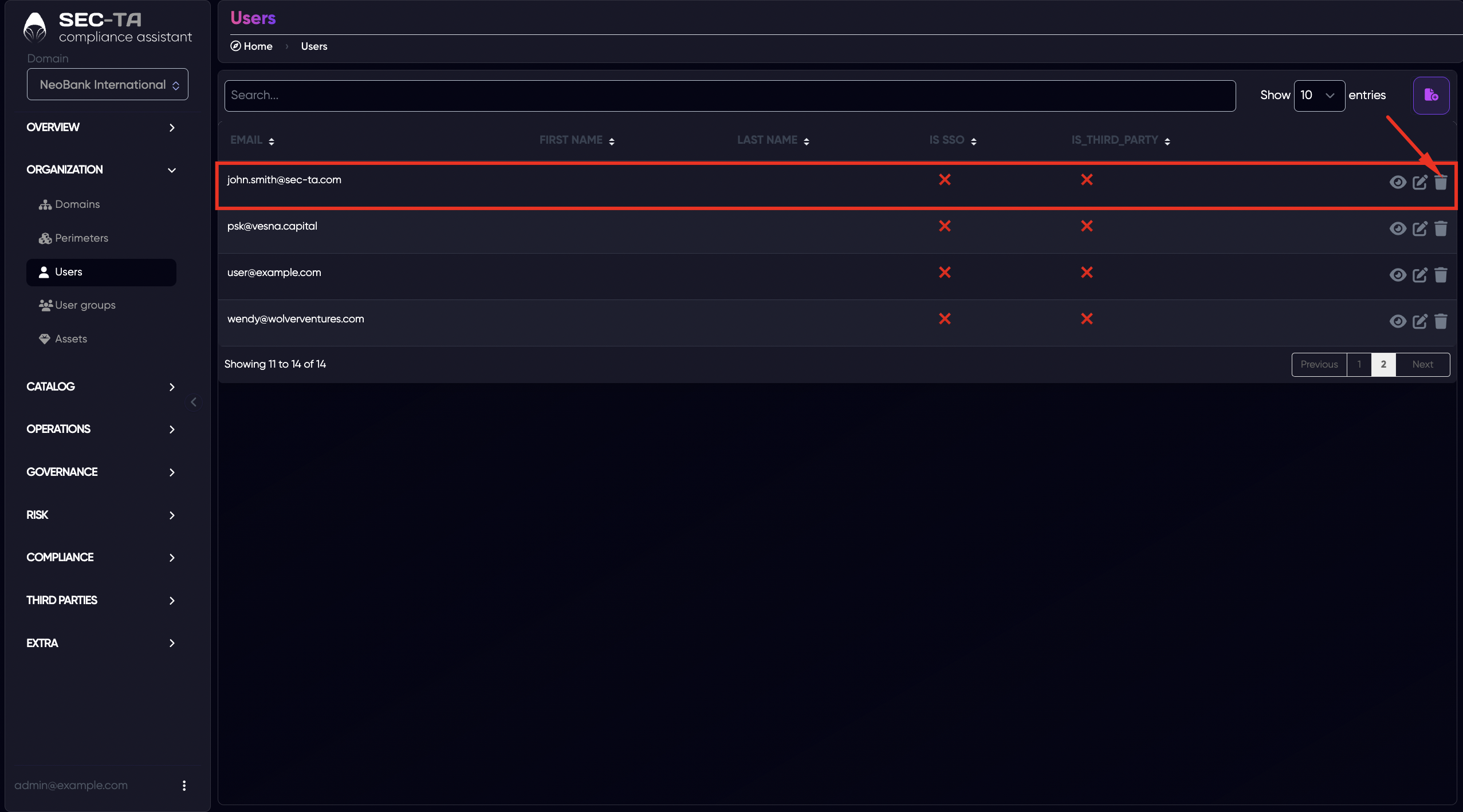
Delete a user by clicking the trash bin icon - this removes their access to the platform.
A confirmation pop-up window will appear next.
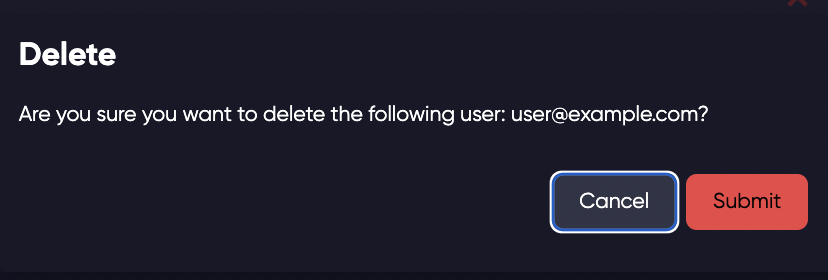
Click Submit button to confirm and delete the user. The system will remove the account permanently, and the user will no longer have access to the platform.